Phrase Editor
When more than one language is available for an application, this dialog will open automatically each time that VTScada detects that you type a new word or phrase in any field that will become part of the user interface. (Tag names and area properties are used in code, and therefore never translated.) You can disable the automatic opening feature of the editor, instead relying on the editor button, shown circled in the following image.
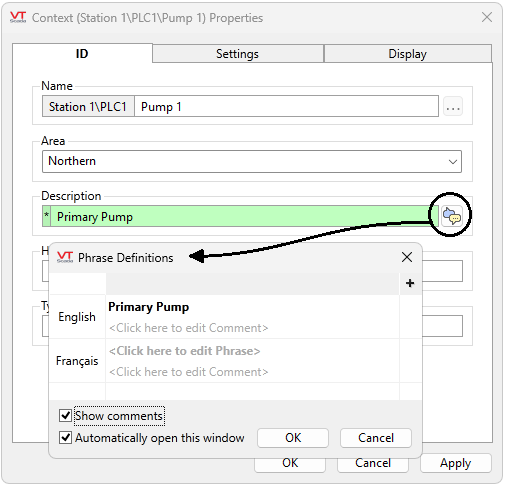
Opening the Phrase Editor for the Description field of a tag.
The language at the top of the list is the default for your application, as set in the Display tab of the Edit Properties dialog. Other languages are available as configured in the Edit Properties dialog.
Click as indicated to edit descriptions and phrases. Descriptions are encouraged as they are useful to guide translators, or to help other developers select which definition of a given phrase or word applies. (See following image.)
It is often the case that one word or phrase can have several definitions (a homograph). For these, click the plus sign (circled in following image) to add new columns as needed for each definition. Each column matches a unique phrase with a unique key. For the default language (top row), every entry must be the same. Editing one will result in all changing to match. VTScada will automatically find all matching phrases in your default language. The selected column indicates which translation is used in a given instance.
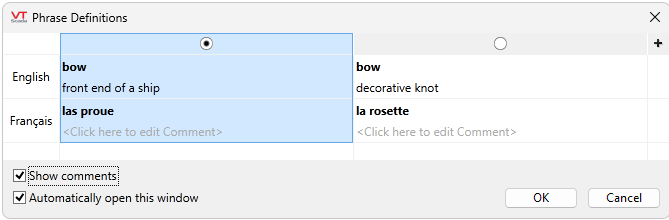
Example shows a second column added for a homograph.
