Realm Folder Tags 
Realm Folder tags are used in realm-filtered applications to configure realm-filtered menu lists. There can only be one custom menu per realm. Only users with access to that realm will have access to its contents through the Page Menu, the Idea Studio and the Report Studio.
With realms enabled, realm users are prevented from:
-
Importing pages and widgets
-
Configuring report Menu Item tags to select JSON report files
-
Overriding OEM pages, widgets and reports (although they may copy them)
-
Copying an item referenced from outside their realm
-
Editing pages or widgets from outside of their realm*
*New applications prevent realm users from editing pages or widgets from outside of their realm by default. Applications made prior and upgraded to VTScada 12.3.01 do not automatically apply this limitation, enable or disable it by configuring the 'PageAndWidgetListIgnoreRealms' setting.
Realm Folder tags are not inherently restricted to the realm that they represent. Any user with tag browser access can see the Realm Folder tags unless those tags are assigned directly to a realm .
To create a Realm Folder, add a new child tag beneath the 'Menus\Realm Menus' tag. Select an area and the realm this tag will belong to. The tag's short name will reflect the latter choice.
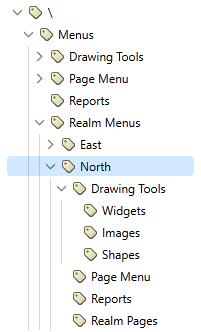
It is impossible to delete the 'Menus\Realm Menus' tag, but if attempted, all of its children will be deleted. Instead of creating a new folder to contain Realm Folders, you should revert the change through Version Control.
The Realm Folder tag named after its associated realm will possess an automatically generated tag tree with similar contents and structure to the root Menus tag:
-
'Page Menu'
-
'Drawing Tools'
-
'Drawing Tools\Widgets'
-
'Drawing Tools\Images'
-
'Drawing Tools\Shapes'
-
-
'Reports'
-
'Realm Pages'
All of these, with the exception of the 'Realm Pages' tag, have a reference to the to the folder tags of the same name at the root of the 'Menus' folder. References may be deleted and re-added as a 'New Menu Item Reference'. By default, placing an item in one of the menu tags at the root of 'Menus' will make it accessible to users in the Realm Folder's child tag of the same name.
References to the standard root tags, such as the 'Page Menu' tag, are always flattened Configuration to display the contents of a folder instead of the folder.. This cannot be reversed but you can reduce visual clutter by creating a folder to contain such a reference.
Menu Item Reference tags can be deleted without causing adverse effects, but the Realm Folder cannot function properly without its automatically generated folders. If one or more are lost accidentally, it is recommended that you revert back to a previous application version through Version Control.
Filtering with the 'Realm Pages' Folder
The 'Realm Page' tag is the only automatically generated folder tag made without default references to the Menu Tag structure at the root of the application. It is intended to store Page Menu Itemselecting pages that realm users create or should be able to edit, partitioning them from users in other realms as a security measure.
Realm users may view all pages within the 'Realm Pages' folder of their realm. A page may be viewed in a realm if its 'Page Menu' contains:
-
A page Menu Item tag with the page selected
-
A reference tag targeting a page Menu Item tag with the page selected
-
A reference tag targeting a folder of page Menu Item tags that contain the page
Whenever a realm user creates a page within the Idea Studio, a Page tag with the new page selected will be added to the Realm Pages folder for that realm. If the page tag is deleted, the realm user will no longer be able to edit it. A page tag deleted from the Realm Pages Folder can be recovered by either reverting your application to a previous version, or a non-realm user creating a new page tag linked to the page under the 'Realm Page' folder.
If recovery is not an option, a preventative measure against accidental deletion of a page tag in the Realm Pages folder is creating duplicate page tags linked to the custom page as backups.
Only non-realm users may configure the 'Realm Pages' folders of multiple realms to share editing access to the same page. This is intended to be a highly privileged ability as it circumvents the intended level of security, it is encouraged that this is done sparingly.
It is impossible to paste Menu Item Tags into the 'Realm Pages' folder. Selecting parameters in page Menu Item Tags under Realm Pages will have no effect.
Reference Menu Item tags under 'Realm Pages' will appear as a viewable page to realm users. Referenced pages are available for customizable navigation features, but realm users will not be able to edit them.
Filtering Editable Widgets
Realm users are only able to edit widgets represented by a Menu Item Tag in the Widgets menu folder for their realm ("<Realm>/Drawing Tools/Widgets"). This folder will function similarly to 'Realm Pages', widgets accessed through reference tags are not editable, it must be selected directly by a Menu Item tag. Realm users will only be able to select editable widgets in this folder.
A widget may be viewed in a realm if its 'Widgets' menu contains:
-
A widget Menu Item tag with the widget selected
-
A reference tag targeting a widget Menu Item tag with the widget selected
-
A reference tag targeting a folder of widget Menu Item tags, one or more of which selects the widget
If a widget Menu Item tag is deleted, it must be recovered as though it were in Filtering with the 'Realm Pages' Folder- through either version control or re-creation by a non-realm user. Only non-realm users can configure multiple Menu Item tags to select the same widget for editing in multiple realms. Like linking multiple realms to an editable page, this too, should be used sparingly.
Realm Folders can be combined with Realm Filtering to limit the scope of a realm-assigned user's access to the Realm Folder within the tag browser. Realm Folders behave like the "Menus" tag does, but for a specific realm, and can be specified when setting a realm filter.
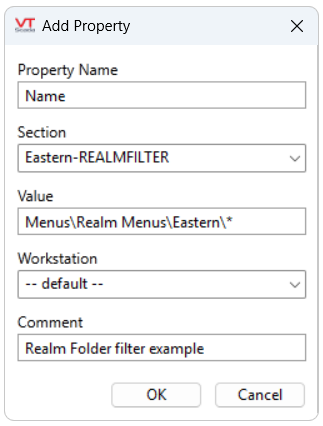
The above example limits the scope of an Eastern Realm user's access in the Tag Browser to the contents of the Eastern Realm Menu Folder. Note that ending the value in '\Eastern\*' includes all of the realm folder's contents, whereas '\Eastern\' only specifies the tag.
Advanced Concepts
Automatic Realm Folder Generation
If none exist, Realm Folders may be automatically generated to accommodate a variety of user actions by default. This is intended to contain any sensitive elements to a realm developed while a user operates within it, as otherwise, the asset would be exposed to other realms through the default tags within 'Menus'. An entire Realm Folder tree will be generated in order to create the appropriate end Realm Folder tag if it does not exist, otherwise the existing Realm Folder will be updated.
A Realm Folder tree may be created when a user in a realm...
... creates a new report in the Report Studio. Without displaying the whole tree, the direct path will resemble "Menus\Realm Menus\<Realm Name>\Reports\", where "Reports" is the requisite Folder Menu Item tag.
... adds a new item to their Page Menu. The new menu item is stored in "Menus\Realm Menus\<Realm>\Page Menu", where "Page Menu" is required.
... uploads a new Image. The new image will be found in "Menus\Realm Menus\<Realm>\Drawing Tools\Images". The automatic Realm Folder generation behavior can be disabled by right clicking on the "Realm Menus" Folder tag and toggling the "Enabled" option. Use with caution, doing this disables all realm separated menus.
Logged-Off and RootNamespace Users
Custom Realm Folders can be created for super users, administrators, 'LoggedOff' users and non-realm users, also known as RootNamespace users. 'LoggedOff' and 'RootNamespace' users both exist without realm assignment, and as such are treated the same way by the menus system. Actions by these users may not trigger automatic Realm Folder generation, so if required, their Realm Folders must be made manually. A user that is logged in but unassigned to a realm will be granted access and content through the root menu tags in 'Menus' and the 'RootNamespace' folder, if it exists.
Realm Menu Copying and Pasting
The Realm Folder relies on all of its automatically generated child tags 'Page Menu', 'Reports' , 'Drawing Tools', 'Widgets', 'Images' and 'Shapes' to function, but they can be deleted. This is intended to enable a copy and pasting configuration practice. If one Realm Menu configuration can be applied to multiple realms then it can be copied and pasted to all of their Realm Folders. The original automatically generated child tags must be deleted first before pasting the new children. All Menu Item Tags possess a 'Title' field. You can view the actual name of one by clearing the field and clicking 'Apply'. If a sequence of random characters populates the field, the tag is not a suitable replacement for a Realm Folder's default child tags.
