Service Error Dialogs
Server-side dialogs are redirected to a VTScada Thin Client if one is available. By default, this is the longest-running connection because that connection is most likely in a control room.
You can set the preference for which VTScada Thin Client will receive the message by adding a configuration section to your Setup.INI file, found in the VTScada installation folder. Note that changes to that file do not take effect until you restart VTScada.
Client selection done by selecting the account name signed in at each VTScada Thin Client connection. Thus, the list is titled "Default-User-Sessions" and will contain the account names. All VIC connections are checked for each account listed in order. The messages will go to that client connection.
[Default-User-Sessions]
Joe
Bob
Mary
If you are running more than one application, you can have server messages go to the first client connection where a given application is running. For example, if one of the applications is named "Demo" and you would like server messages to go to whichever client connection is running that application (if available), then the list might be written as follows:
[Default-User-Sessions]
Demo
Joe
Bob
Mary
In the event that two clients match the given criteria, then the messages will go to the one that was running for the longest time.
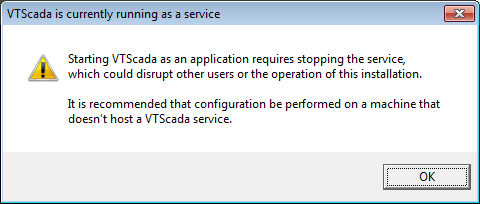
Displayed when someone attempts to start an interactive VTScada session on a workstation where the VTScada service is running.
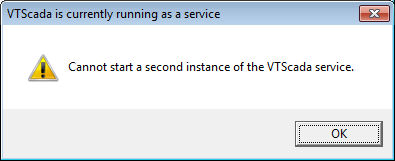
Displayed when someone attempts to start VTScada as a service on a workstation where it is already running.
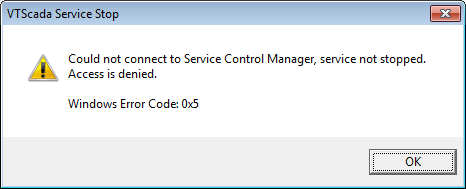
Displayed if you attempt to stop the VTScada service using the command line if the console is not running with administrative privileges, or while signed in on an account that does not have sufficient permissions.
