OAuth 2.0 Authorization Code flow
Use OAuth 2.0 Authorization Code flow for User Authorization. In VTScada, this method is used for the configuration of an email server for the purpose of sending alarm notifications or reports.
How it works in simplified terms.
VTScada uses an OAuth 2.0 Authorization code flow to access resources on behalf of a user. The user verifies their identity with a third party (like Google or Microsoft) and that third party vouches for the user. Here is a general summary of the process:
- The user is redirected to an authenticating server (OAuth 2.0 Provider such as Microsoft or Google) and logs in with credentials kept between the user and the provider.
- The user grants consent for specific scopes of access.
- The authenticating server sends the user back to VTScada's server with a code that says 'Yep, I vouch for this user.' VTScada exchanges the code for an access token and a refresh token. The tokens are tied to the user.
- The user holding the tokens is granted access to the authorized resource.
VTScada Authentication Code Flow Details
A VTScada server will direct a user agent to the OAuth 2.0 provider authorization endpoint. After the resource owner is successfully authenticated, the OAuth 2.0 provider authorization endpoint will redirect the user agent to the VTScada server with a single use code. This code can then be exchanged by the VTScada server for a pair of tokens by providing it to the OAuth 2.0 provider token endpoint. These tokens can then be used by VTScada to access to the resource for which the resource owner granted consent. Continued use of the resource by VTScada for services such as the alarm email system require a refresh token.
In order to authenticate the user agent with the VTScada server, a VTScada client will first direct the user agent to the server. At this point, the server will establish information required to protect the different elements of the OAuth 2.0 consent flow when communicating with the OAuth 2.0 provider. This is an additional step prior to beginning the general OAuth 2.0 consent flow.
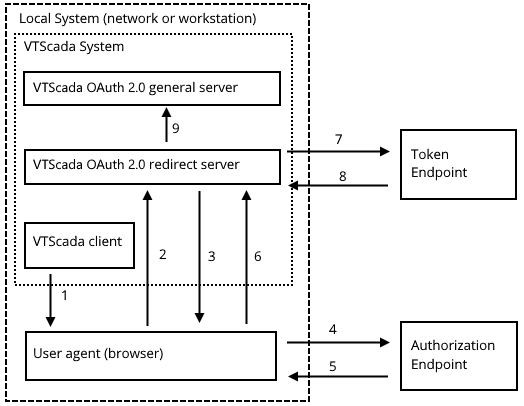
The consent flow process. Numbers refer to the following steps...
- VTScada client invokes the user agent.
- The user agent is directed to the VTScada OAuth 2.0 redirect server to establish common identifying information.
- The user agent is redirected to the OAuth 2.0 provider’s authorization endpoint.
- The user agent contacts the authorization endpoint and authenticates the resource owner.
- The authorization endpoint redirects the user agent to the VTScada OAuth 2.0 redirect server with the single use code.
- The user agent provides the VTScada OAuth 2.0 redirect server with the code.
- The VTScada OAuth 2.0 redirect server contacts the OAuth 2.0 provider token endpoint with the single use code.
- The token endpoint responds with the appropriate tokens.
- The VTScada OAuth 2.0 redirect server passes the acquired tokens to the primary server for the OAuth 2.0 implementation. This may be the same server as that handling the OAuth 2.0 redirect.
To configure OAuth 2.0 Authorization Code flow in VTScada you are going to need some specific information and values. Some of these come from VTScada and some of them will come from your OAuth 2.0 provider.
An OAuth 2.0 provider
A provider looks after user authentication and provides authorization for the service (email) that you want to access from VTScada. Examples include Microsoft AAD Microsoft Azure Active Directory app registration, an OAuth 2.0 provider..
You must obtain all of the following from your selected OAuth 2.0 provider before proceeding to configure VTScada.
Authorization Endpoint URL
A publicly available REST endpoint offered by the OAuth 2.0 provider. Used to confirm the resource owner's credentials during an access request by a third-party application.
Token Endpoint URL
A publicly available REST endpoint offered by the OAuth 2.0 provider. This is where a third-party application such as VTScada can get the tokens needed to access the resource owner’s protected resources.
Revocation Endpoint URL
Optional. Not supported by all providers. A publicly available REST endpoint offered by the OAuth 2 provider. This allows clients to indicate to the authorization server that an access token is no longer needed. Used to enable a "sign out" feature in clients, allowing the authorization server to clean up any security credentials associated with the authorization.
Client ID
An identifier for your application. This will be generated for you as part of the provider configuration.
Client Secret
Similar to a password, this is known only to your application and your provider. You must copy this to a secure location after it is created during the provider configuration process.
Requested Scopes
Optional. Not supported by all providers. The authorization and token endpoints allow the client to specify the scope of the access request using the "scope" request parameter. If the OAuth provider has implemented this feature, it will provide this information.
Resource URIs
Optional. Not supported by all providers. Indicates the target service or resource to which access is being requested. This is defined in RFC 8780. Each OAuth provider may implement it differently, so follow the provider’s instructions to obtain the Audience or Resource information.
A certificate for your VTScada server(s)
Commonly (but incorrectly) referred to as an SSL certificate. Every provider will have its own set of restrictions on what it will accept as the redirect URI
The certificate may be self-signed so long as it is trusted by the user-agent (browser).
An email account with your selected provider.
For example, a Workspace account if using Google as a provider. An MS 365 account if using Azure.
Create an account for VTScada. Do not use your personal email account.A server list specifying at least one OAuth 2.0 server
Referring to client / server configuration, not a Thin Client Server. This is not strictly necessary but is recommended even if your application runs on only a single server.
Your application must be secured and you must be signed in with an account that has the Administrator privilege
The Redirect URI must be resolvable on your internal network.
Assuming that these items are in place, proceed as follows:
Part 1: Enable OAuth 2.0 configuration in VTScada.
- Open the security Options dialog (Administrative Settings)
- Select the option, Enable OAuth 2.0, found within the Advanced section.
- Select OK to save your changes.
- Close the Administrative Settings dialog.
The OAuth 2.0 Settings dialog option is now enabled.
Part 2: Configure VTScada to use OAuth 2.0 Authorization Code flow.
- Open the Edit Server Lists page of the Application Configuration dialog.
- Select the server(s) that will respond to OAuth grant requests.
In the case of an application that runs on only a single server, this step is not required, but it is recommended.- Open the OAuth 2.0 settings dialog.
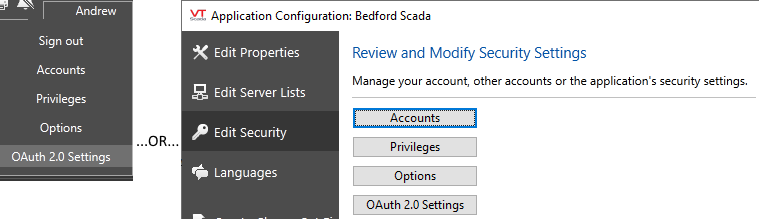
Available from either the drop-down security menu in the screen or the Edit Security page of the Application Configuration dialog.
- Create a new Provider by clicking the
button under the providers list.
This enables the data entry fields.- Create a Provider Name as desired.
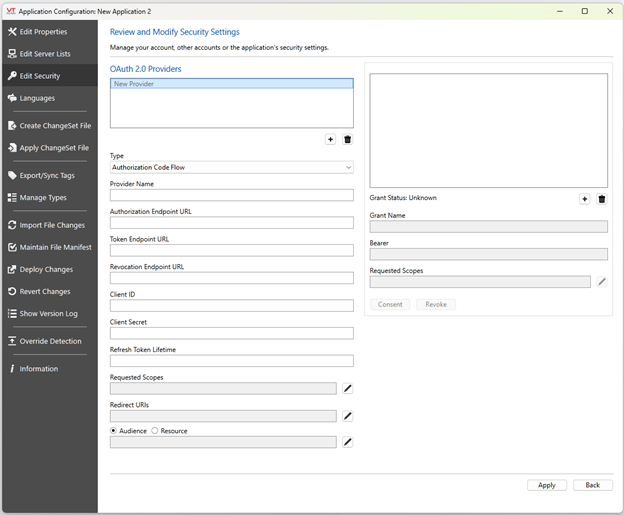
Create an easily recognized name to identify the purpose of the registration and the resource providerThe OAuth 2.0 Settings dialog for Authorization Code flow. All fields are disabled until you begin configuration of a provider.
Note that Providers and Grants can both be deleted using the trashcan buttons below the respective lists.Grant Scopes and Redirect URI entries can be edited by double-clicking. Editing may require you to grant consent again.
Make sure the Type is set to Authorization Code Flow. The fields that are displayed are specific to the Type. If the Type is incorrect, the fields will look different.
Enter the Authorization Endpoint URL for your chosen OAuth 2.0 provider.
- Enter the Token Endpoint URL for your chosen OAuth 2.0 provider.
- Enter the Revocation Endpoint URL for your chosen OAuth 2.0 provider, if one exists.
- Set the Client ID and Client secret to the values created when configuring your OAuth 2.0 provider.
- Set the Refresh Token Lifetime to as appropriate.
This field is measured in seconds and must match the token lifetime used by your provider. This value refers to the time between uses of the refresh token, and not the overall lifetime of the token.
For reference, standard values from two commonly-used providers are:
Google: 6 months of inactivity (15552000 seconds )
Microsoft: 2 weeks of inactivity (1209600 seconds )
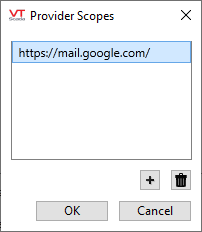
- Select Pen icon next to the Provider Scopes field to open the Scope Editor.

- Enter the URI for the provider scope.
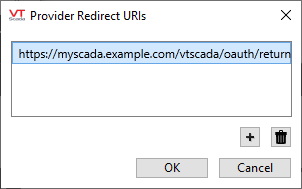
The scope is the service for which you are authorizing access.- Select the pen beside the Redirect URIs field to open the Redirect URIs editor.
- Set the OAuth Redirect URIs as given when configuring your OAuth 2.0 provider.
These will be the FQDN
Do not include any realm name for your application. Do not include the port number unless it is non-standard.- Set the OAuth Resource URI as given when configuring your OAuth 2.0 provider. This field is optional, and it should be set to either Audience or Resource URI.
- Create a new Grant by clicking the
- Create a name for the grant.
This is used to identify the service to which you are granting authorization. Naming the grant to match your provider's email service might be appropriate.- In the Grant Bearer field, enter the identification of the user who will be running the consent operation. Typically, this will be an email address.
This must be an email account registered with your provider.- Select the pen beside the Requested (Grant) Scopes field to open the Grant Scopes editor.
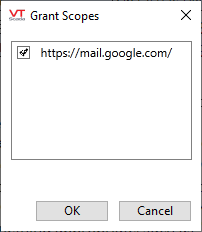
- Select the relevant email scope then click OK to close the dialog.
Scopes are the set of access permissions to be requested for the bearer. This must be a subset of those configured for the OAuth 2.0 provider registration.
- Select the Apply button.
- Select the Grant button to grant authority for VTScada to access the designated email account.
You need not grant consent immediately, but must do so before using the service. See the following notes under Granting Consent
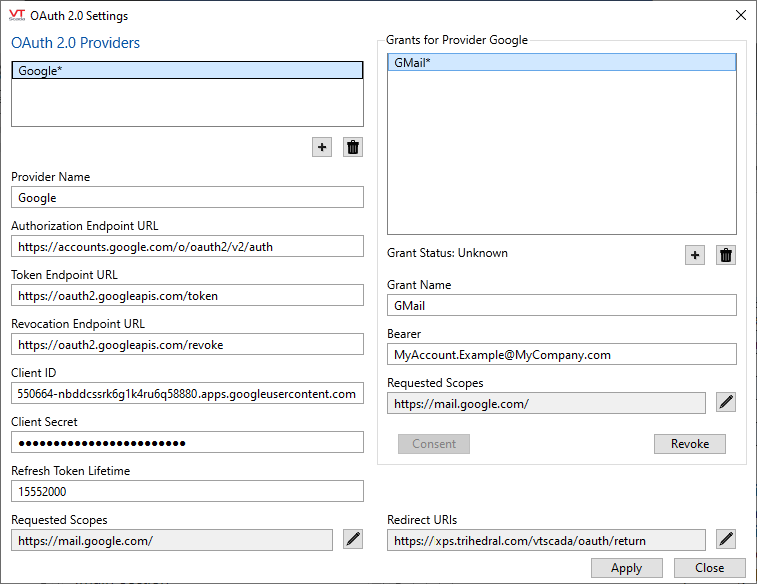
Sample OAuth 2 Settings dialog, as configured for GSuite.
Grant Selection
If you configure more than one OAuth 2.0 grant, then you will have a selection of which to use within the Alarms tab of the Edit Properties / Application Configuration dialog. Outgoing and Incoming Alarm Email Acknowledgments will each have a Grant Selection.
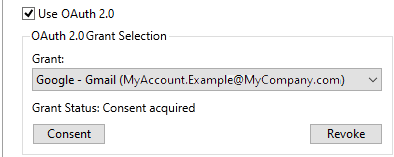
To use:
Select the appropriate grant.
Initiate the consent operation for that grant.
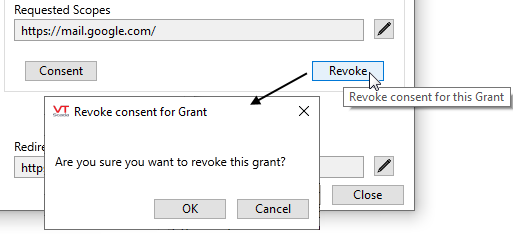
Optionally, you can use this to revoke consent for a grant.
Do not use your personal email to send and receive alarm notifications. VTScada will erase all messages in the Inbox after retrieval. Always use an account that is dedicated for VTScada's use.
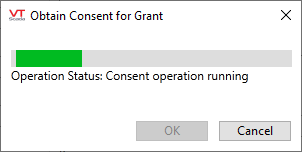
Your default browser is open, waiting for you to complete the operation there.
You must grant consent for VTScada to use an email account through your provider. The dialogs will vary according to your selected provider, but the process will be similar. First you must confirm the account to use. Then confirm that access is granted. Note that this operation will always happen within your default browser, not within VTScada.
The Security Admin who configures the provider and grant may not be the one with the credentials to actually give consent, therefore, grant consumers (alarm emails) are able to grant consent.
You may revoke consent for a grant at any time. Use the Revoke button and confirm that you wish to proceed.