Use VTScada as a DDE Server
VTScada DDE functionality is deprecated as of version 12.0.00 and should not be used in new applications. Extreme care is advised for its continued use. The below directions are required to run it.
VTScada can be used as a DDE server. This functionality is turned off by default. To activate, you must start VTScada with the command line switch, ' /d'.
For example:
c:\Program Files\Trihedral\VTScada\VTScada_YourVersionNumber\vts.exe /d
The /d flag must be run directly on the VTScada executable each time, it will not retain the DDE mode on subsequent runs without it. Windows desktop shortcuts can be configured to supply flags such as this one to VTScada each time, see "Configure VTScada DDE Shortcut" below.
Excel Configuration
Review Security settings for Dynamic Data Exchange to learn about enabling security features Server Lookup and Server Launch in the Microsoft 365 Excel Trust Center.
DDE functionality is commonly configured to rely on Excel spreadsheets to store and organize data. Windows may require settings specific to the version of Windows VTScada is being run on.

Windows Office 2000: This pop up will appear on start up. Select 'Yes'.
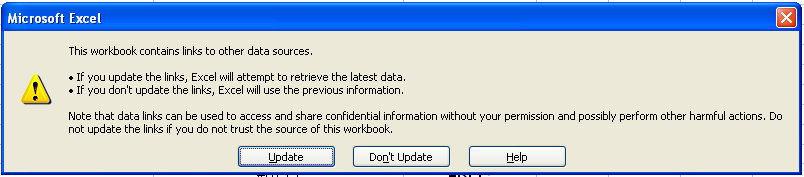
Windows Office 2003: This pop up will appear on start up. Select 'Update'.

Windows Office 2007: Select 'Options' > enable 'Enable this content' and then 'OK' to close.
VTScada Data Display in Excel
In your client program, you must provide address information for the VTScada program, the name of the running application, the names of the tags you wish to query, and the name of the property you want to obtain from each tag (usually '\value').
The most common use-case is to configure Microsoft Excel to display VTScada tag values in the cells of a spreadsheet. This can be done using a formula for each cell, as follows.
The formula has four parts: the name of the program (VTS), the name of the application, the name of the tag, and the property of the tag to obtain.
As entered in an Excel spreadsheet cell, the formula would have this form:
=VTS|'AppName'!'TagName\Value'
This formula is not literal. The various components are described in the following table.
If there are multiple display manager windows, the reference must be to a specific display manager session. The format changes to =VTS|'AppName 1' !'TagName\Value' (or 2, etc). Without this change, you will get an error message that Excel cannot start VTS.
If the tag name you've specified has spaces, back-slashes, or other characters that Excel might interpret as anything other than the name, then you must surround the 'Tag Name\Property' portion of the function with single quotes as shown. It is advisable to do this for every instance, whether required or not.
|
Syntax |
Description |
|---|---|
|
= |
The equals sign (=) indicates to Excel that this is a formula. |
|
VTS |
VTS is literal, specifying the name of the program to access. |
|
| |
The pipe character separates the program name from the document or topic name. (In the case of VTScada, this is the application name.) |
|
AppName |
Following the pipe character is the application name. |
|
! |
The exclamation point character is the topic item delimiter, separating the application name from the tag to which you are referring. |
|
TagName |
Following the exclamation point character should be the name of the tag whose data you want to report in the spreadsheet cell. The tag name should appear exactly as it is displayed in the name property of the tag properties folder. |
|
\ |
The back slash character (\) is the scope operator, separating the tag name from the property or data to which you are referring. |
|
Value |
The name of one of the tag's properties, whose value you want to report in the cell. In most cases, this will be Value, but it could also be, Name, Area, Description, etc. |
Formula Examples
The following formula examples have been provided to assist you in setting up Excel spreadsheet cells to read values from VTScada tags.
Given an application named, "DDE Test" and containing a tag named "AnalogInputTag"...
To display the tag's value in a spreadsheet cell:
=VTS|'DDE Test'!'AnalogInputTag\Value'
To display the name of the same tag's associated I/O device:
=VTS|'DDE Test'!'AnalogInputTag\IODevice'
To display the description of the same tag:
=VTS|'DDE Test'!'AnalogInputTag\Description'
The name of the tag configuration variable you are requesting must be written exactly as it occurs in the tag's code. If you are unsure, use the Source Debugger to examine an instance of the tag type.
Configure VTScada DDE Shortcut
Following these directions, you can create a new desktop shortcut to run VTScada with DDE functionality.
-
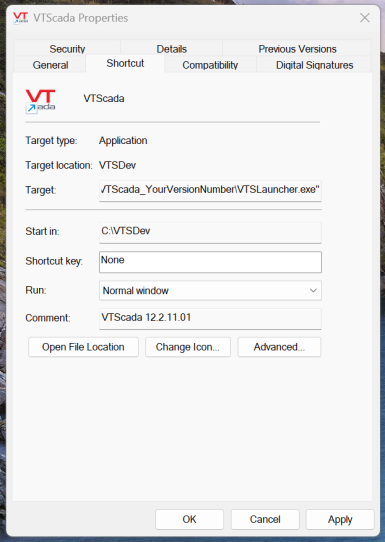
You will need the file path of your VTSLauncher.exe. If you already have a VTScada shortcut you can find it by right-clicking on the VTScada Desktop Shortcut and selecting 'Show more options' > 'Properties'. Copy the address from the 'Target' field under the 'Shortcut' tab.
-
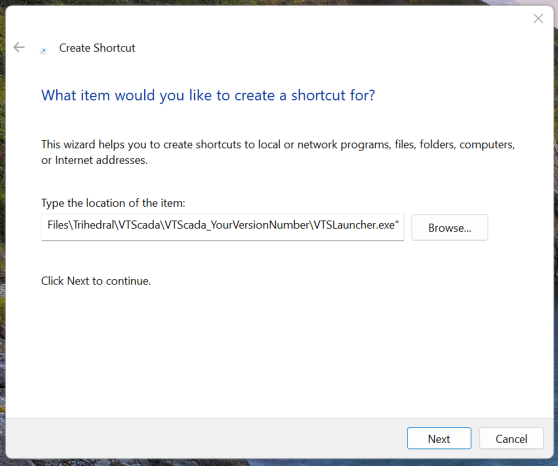
Right-click on your desktop background and select 'New' > 'Shortcut' in the context menu. Paste the location of your VTSLauncher in the search bar.
-
Select 'Next', enter a name for your new shortcut (i.e. "VTS DDE Mode") when prompted and select 'Finish'.
-
Right-click on your new desktop icon and select 'Show more options' > 'Properties'.
-
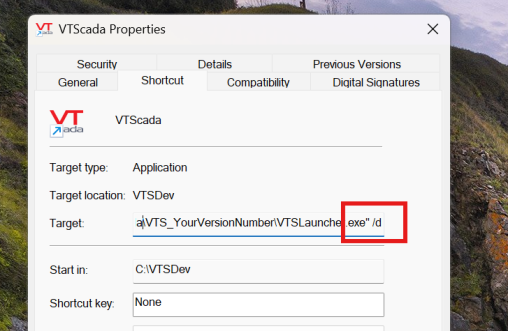
Under the shortcut tab, within the Target field, go to the end of the address and type a space and '/d' after the last quotation mark.
-
Select 'Apply' and 'OK' to save. Now the DDE flag will be supplied every time you launch VTScada with this desktop shortcut.
VTScada as a Local DDE Client - How VTScada can read from (and write to) a DDE server program.
