Link Parameters to Objects in a Page
Nearly every property of nearly every object that can be drawn on a page can use a page parameter as its data source.
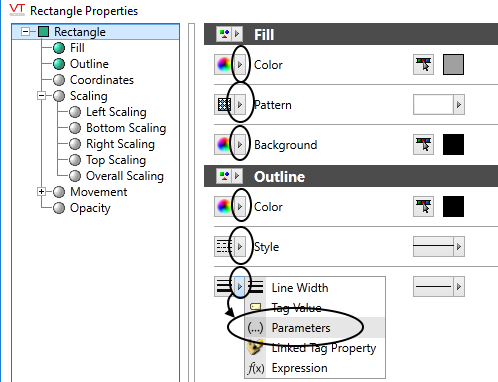
Parameters can also be used for scaling, movement and opacity.
Or for example, text. Given a page that contains a line of text and also a text parameter...
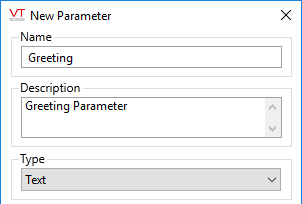
A parameter of type, Text.
You can open the Edit dialog for the text and choose an alternate source for the words that are to be displayed.
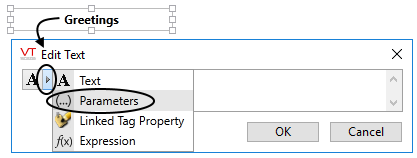
When the data source is set to Parameter, a drop-down selection of the parameters in this page will be available.
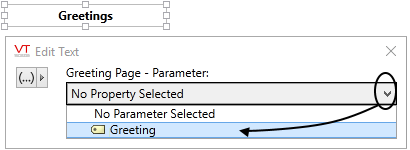
Selecting the specific parameter for the text.
The text will now display whatever is provided for that parameter when the page is opened.
Tag Parameters
If the parameter is a tag, then you have the option of selecting parameters, variables, or child tags with their parameters and variables.
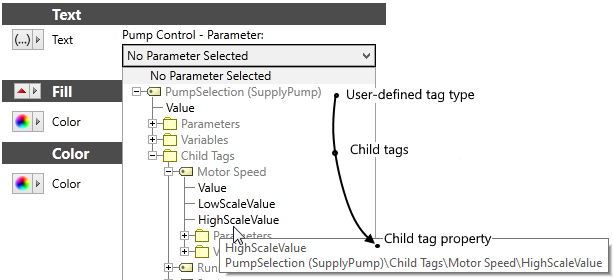
This parameter is a user-defined type with child tags.
Text in the page uses a property (HighScaleValue) from one of those child tags.
Parameter Values within the Idea Studio
If you happened to try the steps described in the previous example, your text would now look like the following in the Idea Studio:

Text with a blank parameter.
While working in the Idea Studio, the parameter has no value. You are advised to provide parameter values that are just for use within the Idea Studio so that you can see objects as operators will. To do so, click the Values button in the Page Properties ribbon:
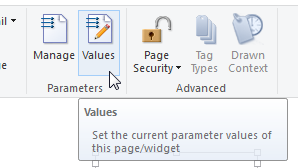
The values you set in the resulting dialog do not become defaults. They are for use only within the Idea Studio. But there, they are very helpful in making the page look realistic and ensuring that text doesn't disappear.
