Extended Historian Storage
VTScada version 12.3 or higher is required to extend your Historian storage.
Extended Historian Storage is not available to ODBC storage. You are strongly discouraged from logging data to any storage, primary or extended, that is not local to your server.
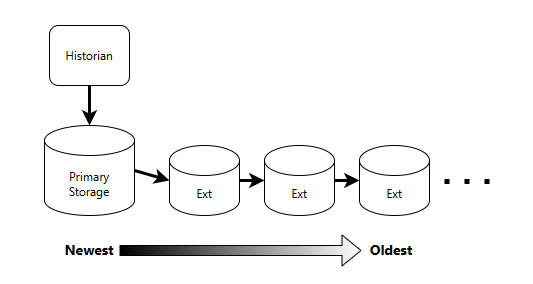
Overview
- New data will always be logged to the primary storage location.
- The primary storage location is the same as the Storage Location configured in the Datastore (Advanced) tab of the Historian tag.
- If no Storage Location is specified in the Historian tag, the default location is in your application directory (for example, C:\VTScada\YourApplicationName\Data...)
- Your primary storage location has a default Minimum Free Space threshold of 10240 MB.
- If the amount of free space remaining in primary storage becomes less than the Minimum Free Space threshold, older data will be moved to extended storage to make space for new data in the primary storage location.
- The extended storage location follows a similar process; when the remaining free disk space is less than the Minimum Free Space threshold (the same threshold as the primary), old data will be moved from this location to the next extended historian storage location to make room from incoming data.
Retrieving data from a Historian with extended storage requires no special process or additional steps. VTScada will retrieve data from primary and extended storage as if it were one unified storage.
Adding an Extended Historian Storage Location
Each additional storage location must be on its own dedicated drive. Ensure that VTScada has read/write access to the storage location.
Extended Historian storage is disabled for ODBC storage type.
- From the Tag Browser, right-click the Historian tag, select Properties and find the Datastore (Advanced) tab.
- Select the server for which you are adding an extended storage location from the Storage list for server drop-list.
- Click [ + ] to add an extended storage location. The first time you add an extended storage location a warning will pop-up to remind you that the storage location must exist on a different drive from your primary storage location.
Click OK to proceed. - Provide the new storage location (for example, D:\VTScada\Data) and click OK.
- Click Apply or OK.
Removing an Extended Storage Location
Deleting an extended storage location will cause loss of access to previous history.
- From the Tag Browser, right-click the Historian tag, select Properties and find the Datastore (Advanced) tab.
- Select the server for which you are removing an extended storage location from the Storage list for server drop-list.
- Click [ - ] to remove the extended storage location.
- The storage location will vanish from the list, the list field will appear green indicating an un-applied change and you will see a red warning display.
At this stage, if you do not wish to proceed, click Cancel to restore your old settings. - When you are ready to proceed, click Apply or OK.
Extending Historian storage for Alarm Historians
When storage location settings for an Alarm Historian are changed, all linked Alarm Database tags are automatically notified and respond by performing an alarm-list reset and rebuild process. Only the active server performs this process. If a backup server becomes active during the operation, it will perform the process after failover. Depending on the size of your application, this can take some time and will impact performance. When it is complete, you must also wait for all servers and workstations to synchronize before making additional Historian or alarm configuration changes.
During this process, you should not restart workstations or make alarm configuration changes.
Take this into consideration when planning to add extended storage specifically for Alarm Historians. Schedule the process during a quiet time if possible and notify, in advance, all other users who may unintentionally interfere with the process.
Extended Historian Maintenance & Troubleshooting
Do I need matching storage on all backup and redundant servers?
No. All your redundant and secondary machines do not need exact matching extended storage. They only need to have enough total space to serve the Historian.
What happens if an extended storage drive dies or become disconnected?
If an extended storage location goes offline, Historian service will be suspended until the state is resolved.
If the equipment is not salvageable, you can replace it with another drive given the same address or remove that storage location from the extended historian storage list (assuming you will have still have enough total storage space).
If you have not configured a redundant storage solution or have not backed up the drive that is now dead, you may not be able to recover the lost data.
If you DID configure redundant Historians, once the new drive is online and the server synchronizes, the old data will be restored in the replacement drive.
