
A query is a request for all tags that match a given criteria. It is saved as a text representation of the filter created using the fields at the top of the Tag Selector dialog.
For example, the following filter settings...
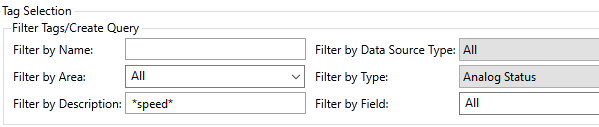
… can be saved as a query that will plot all the tags that match the selection filter. Be careful that this is not an excessive number of tags. The Preview button can be used to find out how many tags match the query before you attempt to plot them.
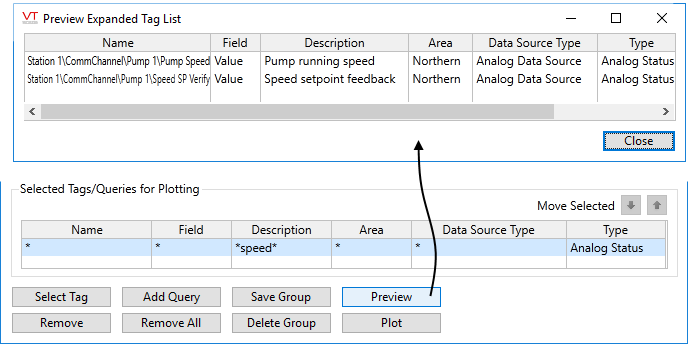
Queries are flexible. If new tags are added to the system that match the filter, you do not need to update the selected tag list - the query will find them the next time the HDV is used.
The steps to create a query are as follows:
- Open the Tag Selector dialog from the Historical Data Viewer.
- Define the filtering criteria using the fields in the Filter Tags/Create Query section of the Tag Selector.
- [optional] Click the Remove All button.
You can combine multiple queries or select both queries and sets of tags to get a list that is the sum of both. Again, avoid plots that include an excessive number of tags.
