Constant, Expression or Tag
When configuring a tag, you will often find three ways to set a property value: Constant, Expression or Tag. For example, when configuring an Alarm tag, you will have the option of setting a delay on the alarm. Depending on your choice of constant, expression or tag, the configuration parameter will look like one of the following examples:
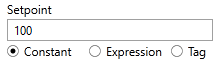
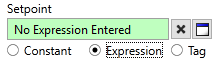
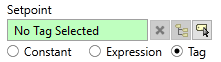
Another option is available for all other tag parameter fields: By right-clicking you can create a tag parameter expression. Tag parameter expressions are typically used for automated tag configuration.
The ability to right-click on a parameter to add an expression does not apply to parameters that provide the options Constant - Expression - Tag. For those, use the tools provided instead of the right-click menu.
The following is provided as a guide to help you choose the option best suited to your application.
Constant
Constant should be used for any parameter that is unlikely to change. You can always come back to the properties dialog to update the value, but otherwise ‘constant’ means ‘unchanging’. Select this option for all values that should remain as you configured them.
Expression
Expressions are snippets of the VTScada programming language that you can write to create values that change with changing conditions. For example, you could create an expression that sets this parameter to the average of 3 or more other tag values. Another expression might change an alarm setpoint depending on current conditions.
Select this option when you want the parameter’s value to be based on a formula, usually referencing other tag’s values. The result will be the similar to (but slightly more efficient than) a Tag Parameter Expression with the optimization option deselected.
The button  opens the expression editor. The button
  clears the current expression. The word ": Invalid" means either that no expression has been provided, or that the result of a calculation is meaningless, such as dividing by zero.
This type of expression cannot use functions that are marked as "Script-only".
Tag
Many parameters can take their value directly from another tag. That other tag might be an operator control for setting a value, such as an alarm set point or delay. The selected tag need not be one for which you have provided an operator input - any tag with a value can be used to set the parameter’s value.
Select this option when you want to have a parameter’s value match another tag’s value.
The tag browser button will open the Tag Browser, from which you can select or create a tag whose value will be used. The "X" button clears the selected tag.
The link button is used with parent-child tag structures to control how the selected tag fits into the overall structure.
