Reviewing Version Changes
A right-click on any entry in the Version Log will open the following menu, which allows you to view details of each change, switch to an earlier (or later) version, and merge or reverse changes.
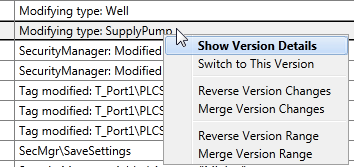
Version details menu
If you choose the option, Show Version Changes, a complete record of how that version differs from the previous will be shown at a source code level.
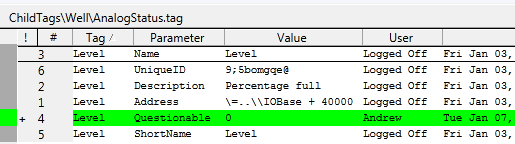
In this change, the Questionable property of the tag, Percentage Full, was changed to 0 by Andrew on January 7th.
The menu at the left of the changes dialog indicates which part of the application changed – source files, tags, images, properties, etc. Within each category, only those files that changed from the previous version will be shown.
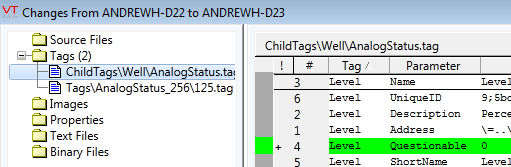
The menu of the Show Changes dialog.
Selecting any given file will open a display showing exactly what changed. Previous values (if any) are shown with a yellow highlight. The new value is shown with a green highlight. Lines that were deleted from the previous version would be shown in red.
In this way, the entire development history of the application can be reviewed.
Switch to This Version
Use this tool to make any earlier version current. Changes made in versions since the one you are switching to are not lost. The act of switching versions becomes a version change itself. For example, your current version number is D12 and you switch to version D8. What will happen is that a new version will be added - D13 - which will be an identical copy of D8. Changes made in versions D9 though D12 will no longer be in the current version, but if required, you could easily switch to version D12 (thereby creating version D14, which is an identical copy of D12).
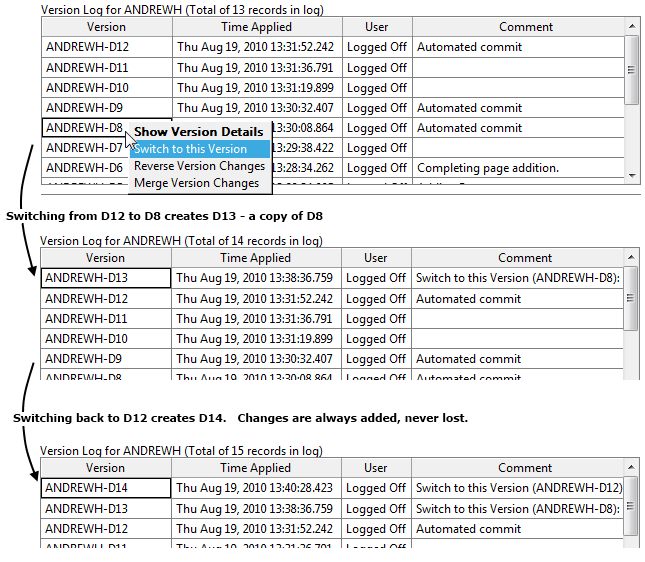
Switching between versions
 Troubleshooting:
- An error message indicates a conflict.
The change you are making affects an unsaved change, or possibly work being done by another developer. Examine the error message for details and resolve the conflict before re-attempting this action.
- After this change, part of the application unexpectedly stops working.
The changes include a detail that may be critical to the operation, such as a changed I/O address. Restore the previous version, examine the version log in detail, then repeat your action taking care to avoid changes that will damage the application.
