Page Note Scope and Appearance
When you create page notes, each new note will have the same colors and other properties as the last unless you choose otherwise. This is done using the Page Note Properties dialog.
The Page Note Properties dialog is opened from within the Edit Note dialog:
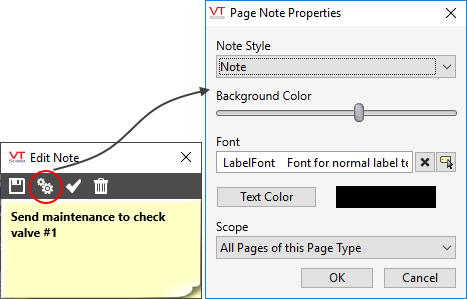
Note Style
Select one of two styles: Note or Beveled.

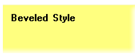
Note, with its curled corner, is often the default.
Background Color
The background color is adjusted with a horizontal slider. Move the Properties dialog away from the note to see the background color being applied as you move the slider.
There are 6 available colors. Moving the slider from left to right will set the color to one of: Purple, pink, red, yellow, green or blue.
Font
The appearance of the text in the note is controlled by a font tag. The default is LabelFont. Click on the tag browser button to select one of the other fonts that have been configured for your application.
Text Color
Clicking on the Text Color button will open the VTScada Select Color dialog. Use this to set any color you want for the lettering of the note.
Scaling
Page Notes scale with pages that have scaling enabled in Page Properties. The only exception is for notes with a scope of "All Pages in Application". Those notes do not scale in size and their position remains relative to the top left corner of the application window.
Scope
This Page
Default option when placing a note. The note appears only on the current page.
All Pages of this Page Type
If the page has parameters, choose this option of you want the note to appear on every instance of that page regardless of how it was opened and which parameters are shown in the current instance. Do not select if the note should appear only on the current instance of the page.
All Pages in Application
Sometimes refered to as a global page note. The note appears on all pages, without exception. These notes do not scale or shift relative to a page with scaling enabled.
Troubleshooting
- Page Note does not scale or move with a page.
There are two possible causes-- the scope of the note or the version of VTScada on which the note originated.
Check the Scope: Double-click on the note to edit it. Check to see if the Scope is "All Pages in Application". This is a globally visible configuration. Scaling in this mode is not supported by VTScada. Consider changing the scope or select the note size and position strategically. (If other workstations scale way down, keep the note as small as reasonably possible. Position global notes near the top left side of the application to keep them on screen.)
Easily Update Note Version: Notes that originated on a version of VTScada that did not support note scaling will not scale until they are re-saved. Double-click on the note to edit and save it immediately. This will update the note.
