Installation & Activation
 You are here...
At a glance:
For new and existing users. Describes licensing, hardware requirements, installation considerations and logistics.
Find this in VTScada:
License Management information can be found in the VTScada Application Manager (The VAM). For detailed information about licensing and requirements, don't hesitate to reach out to your sales rep or call us.
Related topics and things to know before reading this include:
Where to go from here:
VTScada is distributed as a single installation file that includes all development tools, alarm management, the built-in historian, etc. Your license key, a 25-character code, controls which features are enabled. Following installation, click the License Management icon in the VTScada Application Manager to discover what is enabled under your license.
An Installation ID is new with version 12.1. Every VTScada license is matched to the machine where it is activated and cannot be activated on a second workstation. Refer to Activation & Deactivation, within this section.
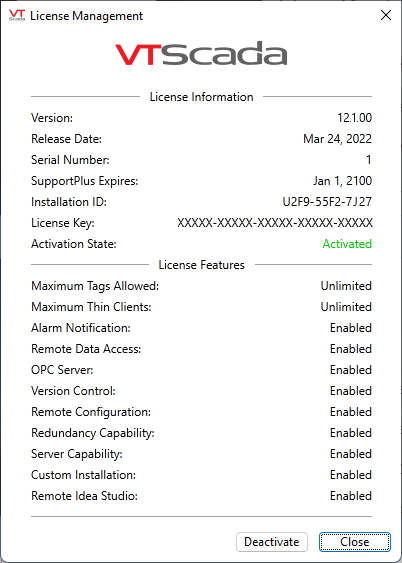
The License Management dialog
VTScada logo images are protected. VTScada will not start if you remove or modify those files. Reinstall VTScada to restore the original images if you disregard this warning.
Disable Windows Controls (Kiosk Installations)
VTScada cannot disable access to Windows controls (file menu, close, minimize...) or keyboard commands (Ctrl-Esc, Alt-Tab, and Ctrl-Alt-Delete). This could be accomplished with a Windows logon script. Refer to:
https://docs.microsoft.com/en-us/windows/configuration/kiosk-single-app
