Watch Window
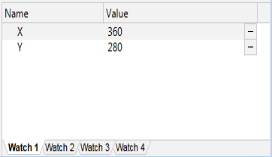
The module content window shows the current values for all variables within any given module, but it is likely that you will be interested in only a few of these, and typically you would need to scroll the module content list to see them. Use the Watch window to select only those variables that you are interested in monitoring. Variables can be selected from several module instances. Use the four tabs along the base of the watch window to create four separate lists.
The tools available to work with variables in this window are the same as those available in the module content window.
- Select the variable in the module content window whose value you wish to monitor.
- Select the watch tab to which you wish to add the selected variable. (There are four watch tabs along the base of the watch window.)
- Click the Add Watch tool in the toolbar.
The variable will be added to the Watch window so that you can monitor it.
To watch a steady-state expression:
The Source Debugger enables you to set a conditional watch of steady-state modules using an expression. To do so:
- Select one of the four watch tabs.
- Click the Add Watch tool in the toolbar.
A field will open on the selected watch tab to allow you to enter the expression to be watched. - Enter an expression (e.g. X + 42).
- Press the Enter key. The expression will be added to the selected watch tab.
To watch a script expression:
This feature should be used by advanced programmers only.
If the expression could be compiled as either script or solid-state, it must be reformatted explicitly to avoid an infinite loop. See examples below for more details.
The Source Debugger enables you to set a conditional watch of a script expression. To do so:
- Select one of the four watch tabs.
- Click the Add Watch tool in the toolbar.
A field will open on the selected watch tab to allow you to enter the expression to be watched. - Enter an expression*.
- Press the Enter key. The expression will be added to the selected watch tab.
Formatting Script Expressions*:
If the expression can be run as steady-state, it will by default. Running as a steady-state expression will continue to return a value even if there has been no change. This loop will consume CPU resources. It is a best practice to avoid loops and explicitly format expressions to ask for a single instance of the target value. To update the value during the debugging process, use the refresh button located to the right of the value in the watch window.
1. Avoid If 1;
Consider the following subroutine module:
<
Increment
(
  A;
)

Add
[
  If 1;
  [
    Return(A+1);
  ]
]
>
The module will run as steady-state and repeat, continuously incrementing A by 1.
To avoid an infinite loop, replace "If 1;" with "If Watch(1);"
2. Reformat expressions that can run as a steady-state expression by explicitly calling for one instance.
Example:
The user wants to call the following subroutine to see the result at a critical moment (ex. when hitting the breakpoint)
Format(P1, P2...)
The module will be called in steady-state by default and update continuously, even if the variables remain unchanged. Reconfigure the statement as follows:
IfThen(True, Var = Format(P1, P2...))
Using IfThen will force the statement to run as a script block and the return value will be assigned to Var as the redundant temporary variable in the current scope.
To remove a watch:
To remove a watch set on a variable or expression:
- Working within the watch window, select the variable or expression whose value you no longer wish to monitor.
- Click the Remove Watch tool in the toolbar.
The variable or expression will be removed from the watch window.
