
Secure access to the OPC UA Server by an OPC UA Client requires the client authenticate its identity to the OPC UA Server. This is achieved by the exchange of security certificates. When a client establishes a connection to the server, the server provides the client with its certificate, allowing the client to verify that this is indeed the server that the client intended to connect to. Similarly, the client provides the server with its certificate, and the server decides whether it trusts the client based on the contents of the certificate.
VTScada provides a user interface to display the client certificates it has received and allow a human to make the decision whether the client should be trusted. Once trusted, it remains trusted until the client certificate expires or a human revokes trust.
Security Certificate Management
Certificate management, including creating new certificates and managing existing certificates, can be managed completely in VTScada using the facilities the VTScada provides. It's worth noting that server and client certificates are retained in the Windows user-mode certificate store.
If you would like to see and manage certificates through Windows' interface, you can do so from the "Manage User Certificates" control panel of Windows. Because certificates are ultimately managed by a Windows user account, you should always run VTScada under the same Windows user account (although different accounts may be used on different machines).
The certificate store folder “Trihedral OPCUA Server” (found in the Manage User Certificates panel) holds the server certificate. This certificate must also have its private key stored along with the certificate. Each redundant machine must have its own server certificate.
The certificate store folder “Trihedral OPCUA Server Trusted” holds the client certificates that are trusted and “Trihedral OPCUA Server Untrusted” holds the client certificates that are not trusted.
| Windows certificate store: | Purpose: |
| Trihedral OPCUA Server | Holds the server certificate for this workstation. |
| Trihedral OPCUA Server Trusted | Holds the certificates from clients that have been trusted. |
| Trihedral OPCUA Server Untrusted | Holds client certificates for clients that have not been trusted, or if trust has been revoked. |
| Trihedral OPCUA Client | Unrelated to the OPC UA Server. |
| Trihedral OPCUA Trusted | |
| Trihedral OPCUA Untrusted |
You may modify the contents of these stores, through Windows manager, subject to the following limitations:
- If you add or remove a server certificate, the affected server (the OPC UA server on the same machine) must be restarted. You can do this from the server tab of the OPC UA Server tag configuration folder.
- If you add or remove a client certificate, all redundant OPC UA servers for this OPC UA Server tag must be stopped. Once they are all stopped, you can restart them, and the new set of client trusts will take effect.
-
Because client certificates are replicated across all machines, manually removing a client certificate from a certificate store will not be effective unless it is also removed from the certificate stores of redundant machines.
For this reason, we recommend using the Server and Client Certificate tabs of the OPC UA Server tag configuration folder to add, remove and modify certificates.
Creating a New OPC UA Server Certificate
A new self-signed server certificate can be created using the Server Certificate section on the Server tab of the OPC UA Server tag configuration folder. You can also provide your own server certificate and accompanying private key.
In both cases, the OPC specification requires some specific information in the Subject Alternative Names (SAN) extension of the certificate:
DNS=hostname[.myplant.com]
URL=urn:hostname[.myplant.com][:optionalstring]
[IP Address=127.0.0.1]
where the [square brackets] are optional depending on your configuration. The specific IP Address used in this example is for illustrative purposes only.
When this certificate is saved and selected, the URL value will appear in the Application URI field.
DNS Entries
OPC UA Clients use this as part of their checks that the certificate the server supplies to them is indeed for the intended server. This value must have a hostname/domain name that matches the hostname/domain in the Endpoint configured in your server tag.
URL Entry
There must be exactly one URL entry in the SAN. This value must exactly match Application URI. When a valid certificate is selected in the OPC UA Server tag Server tab, this value will populate in the Application URI field.
IP Entry
If your server has a static IP address and the endpoint your OPC UA client will connect to also has a static IP address, then an IP entry must be provided instead of a DNS entry (although both can be specified).
Say that the Endpoint (configured in the Server tab of the OPC UA Server tag) were opc.tcp://10.14.156.32:4880/server. The IP address entry of IP=10.14.156.32 must be in the SAN.
Configuring Server Certificates
The Server Certificate section on the Server tab in the OPC UA Server tag is used to select the certificate used by the OPC UA server and to manage the set of server certificates held in the certificate store. Use the drop-list to select the certificate that the OPC Server will use. Click the Manage Certificates button to open the certificate management dialog.
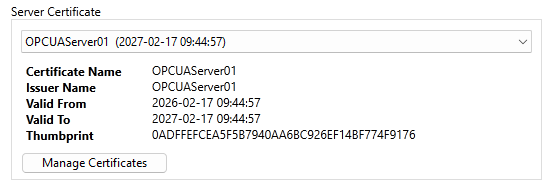
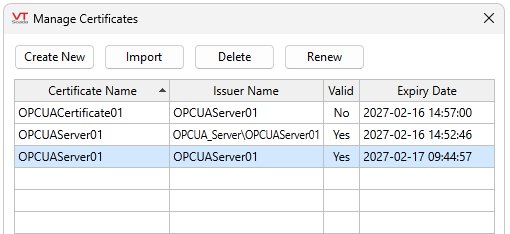
Right-click a certificate to open a context menu of options. Delete and Renew perform the same operation as the buttons above the table. View will display the Windows Certificate Details dialog for that certificate.
The certificate grid displays the certificates currently in the current user’s “Trihedral OPCUA Server” certificate store for the workstation currently selected in the Controlling VTScada System drop-list, and provides buttons to create a new self-signed certificate, import a certificate from a PKCS12 format file (usually has the .PFX file extension), remove a certificate and renew an existing self-signed certificate.
Operations performed here apply only to the currently selected controlling workstation.
To perform certificate operations for a workstation, your VTScada application must be running on that workstation and able to communicate to the workstation you are configuring the certificate from.
Clicking "Create New" opens a Create Self-Signed Certificate Dialog:
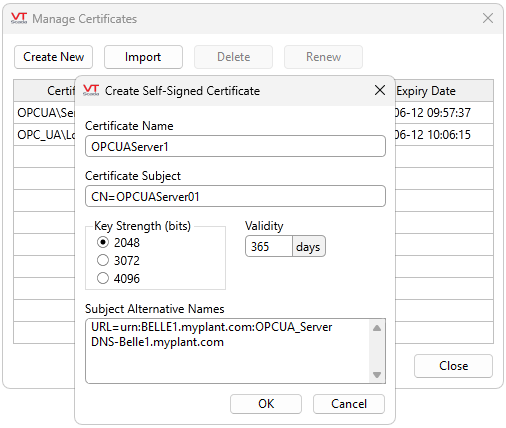
The Certificate Name, Certificate Subject, Key Strength and Validity have technically valid defaults. You must supply the Subject Alternative Names. Click OK. If the certificate configuration is legitimate, a value of "Yes" will appear in the "Valid" column.
