Image Properties Dialog
Provides an alternative method of formatting an image. The tools found here can also be found in the Format Images ribbon.
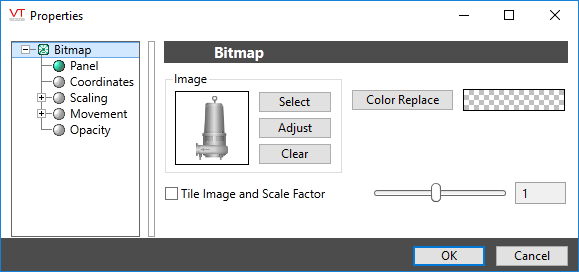
Image Select
Opens the Select Image dialog, within which you can browse for images, import new images, and select the image to use.
VTScada recognizes the following image formats: .BMP, .CUT, .EMF,. JPG, .PCX, .PNG, .TIF, .SVG* .WMF
Using .SVG images comes with the following considerations:
• SVGs are resource heavy! They are slower to draw than other image types and roughly twice as costly as .PNG and .JPEG. They are intended for images that must scale without loss of resolution. Reconsider your file type if the image is larger than 1MB or will be redrawn often.
• Animated SVGs are not supported.
• Only elements supported by Microsoft Direct2D are supported. Unsupported elements won't load.
• .SVG images are only supported on Windows 10 version 1703 and up. In applications running on earlier versions of Windows, .SVG images won't load.
Image Adjust
Opens the Adjust Image dialog box, which can be used to change the color and other display characteristics of the image. See: Adjust Image Dialog
Image Clear
Remove the selected image and do not select a replacement.
Tile Image and Scale Factor
Creates a repeating pattern of the image within the defined image area. The scale factor changes the size of each copy relative to the original.
Color Replace
Use the Color Replace option if the image includes a color indicator patch, or if you have selected the No Image option. (Color indicators within images are areas of Active Orange.
