Introduction to Report Studio
The Report Studio is still under development and has not officially been released. Be warned that code may change such that reports you create with this pre-release trial version might need to be updated in order to continue working after your next VTScada update.
Until the official release, documentation for the Report Studio will open in response to the F1 key but will not be shown in the menu system. To view a table of contents for the complete chapter, navigate to Report Building (Report Studio)
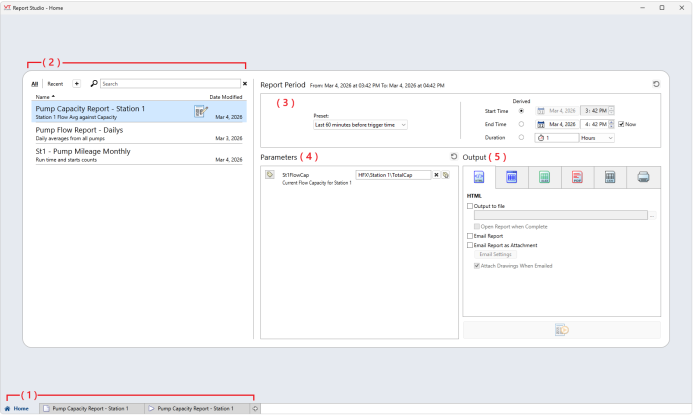
Tabs (1)
New drafts, open reports, and report previews appear as tabs along the bottom of the Report Studio. Click the plus to open a new draft.
The first time you open Report Studio in an application, you will automatically be redirected to an edit tab-- If there are no saved reports, then there is nothing to browse in the home tab!
Report Index (2)
All your saved reports are indexed on the left-hand side of the Home screen.
Displaying "All" shows all reports sorted alphabetically (by ASCII code), Click "Recent" to sort them by modification date. Click the [ + ] button to open a new draft. Reports can be filtered by searching for keywords in the Report name or description. When a filter is applied, the search bar turns orange. Click the x next to the search bar to clear a filter. To modify a report, click the Edit symbol  in the Report selection. The report will open in a new tab.
Select a report here (highlighted blue) to populate the other areas of the home page.
Report Period (3)
Shows the default configured report period of the selected report.
Select a different Report Period by using a preset option from the droplist or with the Derived settings.
A period consists of either:
- A start time and duration.
- An end time and duration.
- A start and end time.
To set two of the parameters, select the radio button of the parameter to be excluded.
Uncheck "Use Report Defaults" to suspend report period parameters defined in the report.
Parameters (4)
Tags supplied to the selected report as parameters. Unless otherwise specified, the report will use tags or tag paths as defaults, preconfigured within the Parameters menu of the Report Editor.
When the values for the parameters are changed to something other than their default values, the "Use Report Defaults" control is unchecked. Check it again to revert to the default values.
If the report is configured to use one or more default Tag parameters that are inaccessible to the user by Realm or Global filtering, the parameter will be cleared. The parameter must be reset to a tag within the user's scope of access if needed.
Output (5)
Select and configure the Output format to run the selected report from the Report Studio.
From left-to-right: HTML, screen display, Excel XLSX file, PDF, CSV or Print. When an output has been configured, the Run button at the bottom becomes enabled.
Screen Display does not require any configuration and makes a convenient option for quickly previewing a report.
Click [ + ] to create a report or edit an existing report to open an edit tab.
Report Studio Edit Tab
The edit tab is where you build a report. Bring visual elements together by dragging Components to the canvas. Determine report outputs by configuring Data Sets and report Parameters. Manage Data Sets and Parameters from the edit tab, and preview or run reports.
Users with Report Studio Access but who do not have Report Definition Management will always be in Draft mode. They will not be able to save changes; changes to reports will be discarded when the user leaves Report Studio.
Saved reports will be added to the index on the Home tab.
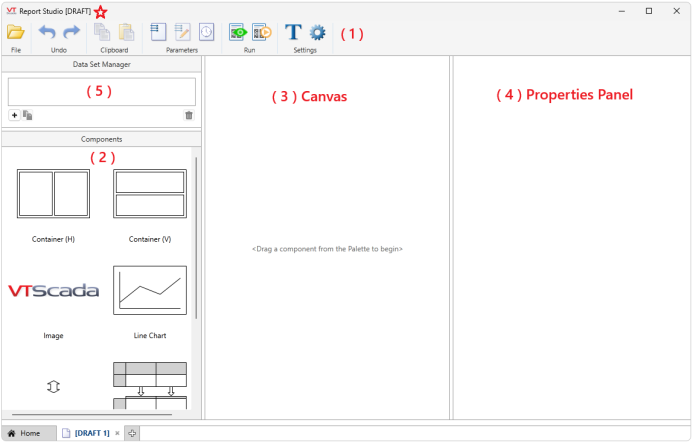
Home Ribbon (1)
Open the File menu, undo/redo, copy to/paste from clipboard, create and manage parameters, set the default report period, preview or run a report, edit the report name and description, or configure DST settings.
Components (2)
Components add functionality to a report. Drag and drop components onto the canvas to create a report layout. Then click each component to configure it in the properties panel.
Canvas (3)
Components will snap into place on the canvas, relative to other components. Use design components like containers, spacers and images to enhance your report layout.
Properties Panel (4)
Click on a component on the canvas or a Data Set from the Data Set manager to see configurable properties in this side panel.
Data Set Manager (5)
All Data Sets created in a report appear in the Data Set Manager. Click on a Data Set from here to see its configurable properties in the properties panel. Add new Data Sets from the Manager, copy an existing Data Set to make quick variations, or select a Data Set and click the garbage can icon to delete the Data Set.
Some components automatically generate Data Sets, such as Timestamps and Row Labels.
[DRAFT]✩ - This report is in draft mode. Changes will be discarded when the Report Studio is closed unless a user with Report Definition Management saves the report.
A brief summary of the report making process
All reports follow the same approximate process, more or less.
- Create a new report [ + ]
- Bring data into your report by creating at least one Data Set.
- Drag components onto the canvas to configure the layout.
- Configure components by selecting Data Sets.
- Format the appearance of each component.
- Preview and edit until satisfied. File > Save As your report.
Once a report has been saved, it will become available to select throughout VTScada.
