Query SQL for Reports
The Report Studio is still under development and has not officially been released. Be warned that code may change such that reports you create with this pre-release trial version might need to be updated in order to continue working after your next VTScada update.
Until the official release, documentation for the Report Studio will open in response to the F1 key but will not be shown in the menu system. To view a table of contents for the complete chapter, navigate to Report Building (Report Studio)
The SQL query data set retrieves information from ODBC databases including external ODBC databases, your application or other ODBC-compliant VTScada applications. Set report parameters, specify start and end times, format the output and select any key for coalescing. This data can be formatted in a report or combined with production data from a VTScada application to enhance reports.
Access an ODBC database directly using an ODBC string and credentials or configure a Machine DSN. Configured Machine DSN's will appear as selections from a droplist in Report Studio.
Create a Data Set
In the Data Set Manager, click [ + ] , select the correct Type from the drop list and give your Data Set a name. You may cultivate a selection of Data Sets in a single report configuration so you should opt for a descriptive name.
Click OK and the Data Set Properties will open on the right-hand side.
If you navigate away and want to get back to this properties panel, click on the Data Set in the manager.
SQL Query Data Set Properties - Specify a source.
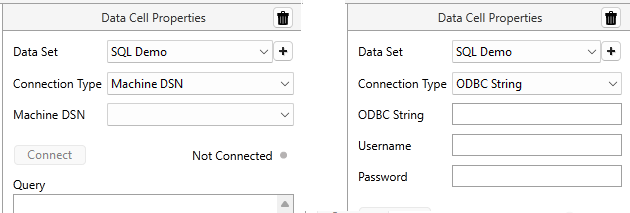
Connection Type
Choose between Machine DSN or ODBC String. ODBC String will display fields to accept the string and credentials. An administrator may choose to set up a Machine DSN to avoid exposing database information to operators. Machine DSN will only work on the local machine.
Machine DSN
A droplist of available Machine DSN.
ODBC String
You must provide the ODBC String and login credentials.

Connect button and indicator
After either Machine DSN or ODBC String are configured, click "Connect" to connect to your database. The indicator may appear as follows:
- "Not Connected", gray - No connection has been attempted.
- "Connecting", Orange- A connection is being attempted.
- "Connected", green - A connection is actively established.
- "Not Connected", red - There is a precedent for connection but it is not current connected.
SQL Query Data Set Properties continued - Query editor.
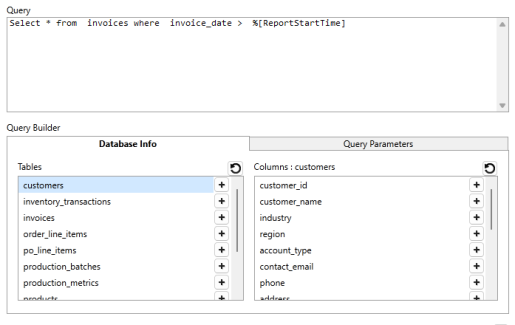
Query
The Query you enter will determine which values are retrieved from the database and displayed in your report. Specify by database table, database column and narrow results in any way supported by SQL syntax (FROM, WHERE, ORDER BY, LIMIT, BETWEEN...AND....>, <=, NOT, AND, OR, to name a few examples...)
Manually type a full query or use a combination of typing and Query Builder tools much like you would use the parameterized phrase selector. As information becomes available to VTScada, options will appear in the Query Builder fields and tabs.
See: SQL: Reference and Examples
Query Builder - Database Info
Connect to a database to populate Tables, Click on the name of a table to populate Columns. Refresh  will renew your options with the latest available information from the connected database. Clicking the [ + ] button next to a table or column will insert a specifier on the end of the query.
Query Builder - Query Parameters
Click "Query Parameters" to switch tabs.
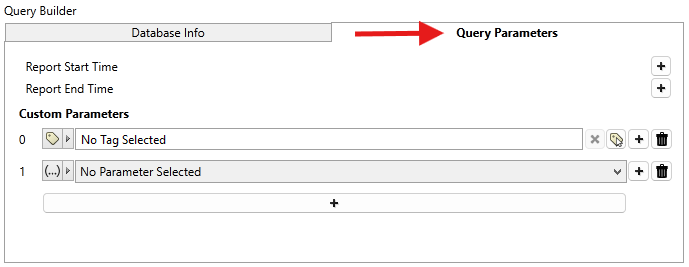
Report Start Time - Click [ + ] to add %[ReportStartTime] to the end of your query.
Report End Time - Click [ + ] to add %[ReportEndTime] to the end of your query.
Custom Parameters - Click the long [ + ] along the bottom of Custom Parameters to add additional parameters to this tab. There are two types of Custom Parameters in the SQL data set, tag type and report parameter type. Each new Custom Parameter is indexed, starting at 0. Click [ + ] next to the parameter to add its specifier to the end of the query. The specifier will match the index number (%[0], %[1], %[2]...)
Click the garbage can icon next to a Custom Parameter to remove it from your Query Parameters. This will not remove the specifier from your query. You must update your query accordingly if you delete or change Custom Parameters that are referenced in your query.
...Tag type - Select a tag from your application.
...Report parameter type - Select a Report Studio Parameter. See
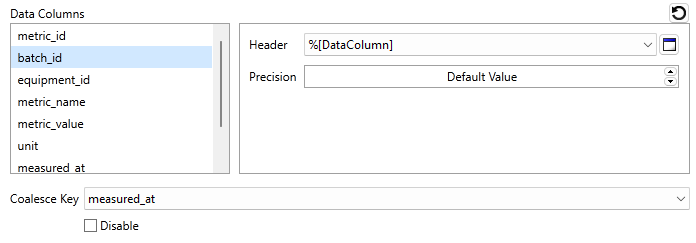
Available Data Fields
Data fields will appear blank until a valid query is configured. Click  to populate Available Data Fields. Each selected field corresponds to a column in the report (per the query). Select a field to see more optional report parameters such as the label at the top of the column (header) and the number of decimal places for numerical values (precisions).
Coalesce Key
When Data Columns is populated, the Coalesce Key droplist will populate with all timestamp and SQL Date columns from this set.
The selected key is a reference point. The rest of the data in the set will be ordered or aligned relative to the key column.
If you want to preserve the order returned by the query (For example, if an ORDER BY clause is used), you can disable coalescing by checking "Disable".
