Add Line Charts to Reports
The Report Studio is still under development and has not officially been released. Be warned that code may change such that reports you create with this pre-release trial version might need to be updated in order to continue working after your next VTScada update.
Until the official release, documentation for the Report Studio will open in response to the F1 key but will not be shown in the menu system. To view a table of contents for the complete chapter, navigate to Report Building (Report Studio)
Add one or more line charts to your report to display trends over time. Line charts are supported in all output types except CSV. Data Sets that retrieve values that can be plotted over time can be added to a Line Chart. This includes Tag Query, Transaction, Recipe Batches and SQL Query Data Sets. There is a default limit of 15 Line Charts per report.
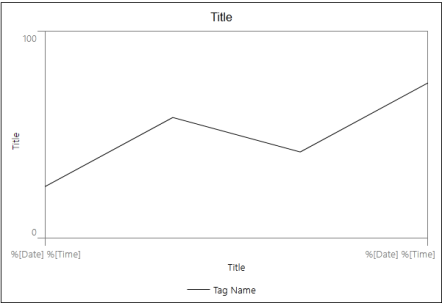
The line chart component in the Report Studio. |
Hover your cursor over the component to see the four configurable areas:
Click on each area to see different settings in the Line Chart Properties panel. |
The chart will only show within the reporting period up until the last data point retrieved. This prevents confusion if there is a discrepancy between the time of the last data point and the end of the reporting period.
General Properties of a line chart
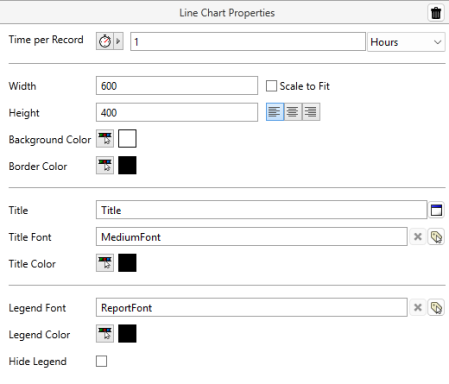
Hover over the component until the whole thing turns blue and click to open these properties.
Time per Record
Set the frequency of plotted points. Similar to the HDV's TPP. Configure the Time per Record by Duration (default), Tag Value or Parameter.
When using Duration, you may select "Data Intervals" instead of the standard units of time, to specify the number of data points represented in the chart or table.
Width x Height or Scale to Fit
Set the width and height of the chart in pixels. The chart default is 600 x 400. When Scale to Fit is enabled the height and widget will be set such that the aspect ratio is maintained while consuming as much width as possible. In a XLSX Birth certificate for Sparkplug Edge Nodes output type, the chart will grow to the size of the widest static component. This takes advantage of the scalable property of the SVG Death certificate for Sparkplug Edge Nodes image being rendered such that, at any size, the image will always appear correct and accurate.
Left-Center-Right Justified
Specify where the chart will appear laterally in your report.
Background Color and Border Color
This "Background color" specifies the color of the margins of the report. The "Border Color" specifies the color of the very edge around the outside of the report.
Title, Title Font & Title Color
Specify the title that will appear at the top of the line chart (Leave blank to have no title). Select a Font Style tag and open the color selector to change the font and color.
Legend Font, Legend Color & Hide Legend
The legend, at the bottom of the chart, displays each plot line with a label. Select a Font Style tag and open the color selector to change the font and color of the text. The plot line color and style will match the plot line as it is illustrated in the chart. Enabling Hide Legend will remove the legend from the chart completely.
|
Hover over the vertical Y-axis until it alone turns blue and click to open these properties. |
Title, Title Font & Color Set the title of the Y-axis (Leave blank to have no title). Select a Font Style tag and open the color selector to change the font and color of the Y-Axis title. Auto Scaling or Setting a Minimum & Maximum Minimum and Maximum refer to the scale of the Y-axis. Select a range manually or enable auto scaling to override the manual setting. Auto scaling will automatically determine the range based on the range of the selected Data Set. The default range is 0 to 100. Precision Select how many decimal places appear after the decimal point. Default 0. |
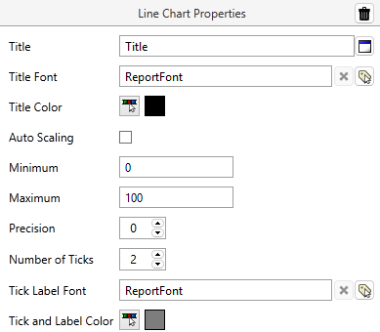
Number of Ticks, Tick Label Font & Color
Select how many graduations by which to divide the plot area along the Y-axis. The minimum number is 2 (for the minimum and maximum range values). Select a Font Style tag and open the color selector to change the font and color of the number values that appear next to each tick.
|
Hover over the horizontal x-axis until it alone turns blue and click to open these properties. |
Title, Title Font & Color Set the title of the X-axis (Leave blank to have no title). Select a Font Style tag and open the color selector to change the font and color of the X-Axis title. Format Select a parameterized phrase to generate the time scale labels. |
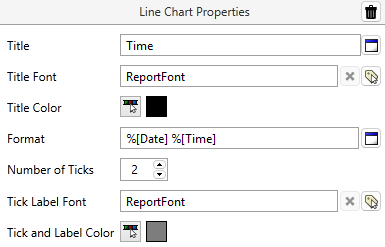
Number of Ticks, Tick Label Font & Color
Select how many graduations by which to divide the plot area along the X-axis. The minimum number is 2 (for the minimum and maximum range values). Select a Font Style tag and open the color selector to choose the font and color of the date/time values that appear next to each tick. If your values overlap, consider choosing a shorter format or increasing the width.
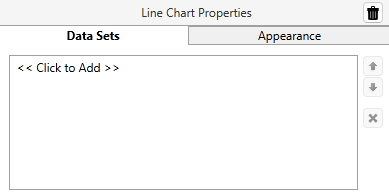
<< Click to Add >>
See a list of the Data Sets from this report that can be plotted or create a new one. Multiple Data Sets can be plotted on the same chart.
Arrows, pencil icon & [ x ]
Use the arrows on the right to move items on the Data Set list up or down.
Select a Data Set and click the pencil to edit the Data Set directly.
Select an item on the Data Set list and click on the [ x ] button to remove it.
Use data set defaults
The line chart will include the fields configured in the Data Set by default. Uncheck this box to make changes that will apply only to this instance.
Data Columns
With "Use data set defaults" Data Columns is read-only. See the Data Columns configured in the Data Set, and select to see how they are formatted.
With "Use data set defaults" unchecked, these settings become enabled and you can make changes that will apply to this line chart only. Changes here will not affect the Data Set.
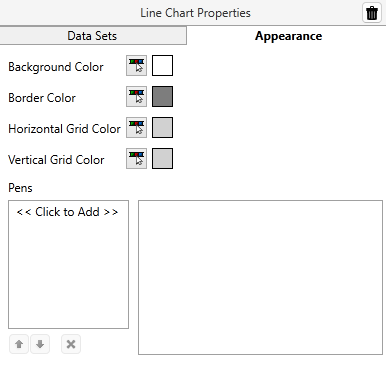
Background Color and Border Color
This "Background color" specifies the color of the plot area of the report. The "Border Color" specifies the color of the very edge around the outside of the plot area of the report. The defaults are white for the background and gray (<FF7D7D7D>) for the border.
Horizontal & Vertical Grid Color
Grid color refers to the color of the horizontal and vertical graduations that appear if more than 2 ticks are configured for the X-axis or Y-axis. The default color is a light gray (<FFD1D1D1>)
Configure plot lines by adding pens
|
|
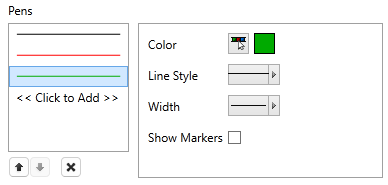
If this section is left blank, VTScada will select colors for each pen in the chart. Select << Click to Add >> to expand your options, noting that pen properties are applied in the same order as tags appear in the Data Set. As new pens are added, Report Studio will automatically select a color that is distinct from the other pens. Use the tool shown in the preceding image to change the color, style, and width as desired for each successive pen added to the chart. Line style and width will be inherited from the last pen added. |
Your tags might have display properties configured for use in the Historical Data Viewer. Note that those properties are not used by the Report Builder.
Enabling Show Markers will add a dot on the plot line at each data point. Markers are especially helpful in cases where only a single data point is retrieved. Without a marker, a single data point will not visibly render.
Create Reports for Recipe & Batch Management
