Page Notes
 You are here...
At a glance:
For operators, this topic describes how to create and edit "yellow-sticky" type page notes on your screens.
Find this in VTScada:
Click on the Add Page Note button:
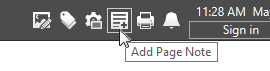
A security privilege restricts who can add page notes..
Related topics and things to know before reading this include:
Find and Open Pages Within an Application
Where to go from here:
Use Page Notes to add reminders on any VTScada page. (The ability to create and edit page notes is controlled by the security privilege, Page Note Edit.)
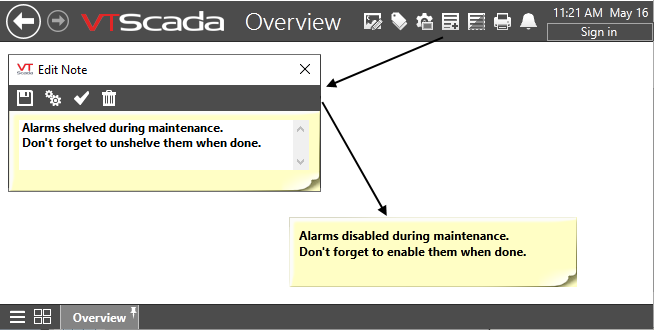
A note being created, then displayed on a page.
Page Notes are unique in that they can be added to any page, including the VTScada system pages such as Alarms and Reports. Nothing else in VTScada is so flexible in its location. Optionally, a note can be configured so that it is displayed on every page, throughout the application.
Also, unlike the text recorded in Operator Notes, Page Notes can be edited and deleted. (A permanent record is kept in the Event history, of who added, edited or deleted every note, and of the content of every note during its existence.)
If you hover the mouse over a note, you will see a tooltip telling you when the note was created and who wrote it.
Require acknowledgment of Page Notes
If you need a record that an operator has read a page note, you can "arm" it by clicking the check mark in the Edit Note dialog. When a note is armed, the next time that anyone clicks it, VTScada shows the following dialog:
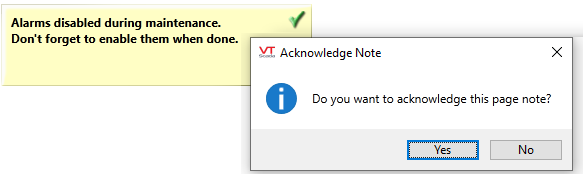
Acknowledging an armed Page Note
Notes and their background color cannot be made transparent and are always in the foreground of a page. This means that they will always hide whatever else was on the page, behind the note. A button at the top of the screen will hide or display all the notes on a page.
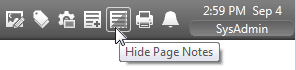
Hiding a page note is a temporary action
The act of switching to a different page, then coming back to the current one will cause all hidden page notes to display. VTScada assumes that the note exists to be read.
Disable Page Notes on a given workstation
Add the property, DisablePageNotes, setting it to 1 for specific workstations. Refer to Workstation-Specific PropertiesWorkstation-Specific Properties
The appearance of Page Notes can be adjusted in several ways: You can change the color of the text, the color of the background, the choice of text font, the size of the note and the style of the note border. These are all accessed by the properties button in the note editor.
Scaling
Page Notes scale with pages that have scaling enabled in Page Properties. The only exception is for notes with a scope of "All Pages in Application".
Page Notes with a scope of "This Page" or "All Pages of this Page Type" will change in size and position relative to a page as the page scales. Page Notes that can be seen globally, as they have a scope of "All Pages in the Application" do not scale and remain fixed, relative to the top left corner of the application window.
If you must use a global page note, do so strategically. Keep the note small so that it is not obstructive in applications and workstations that are scaled down. Position the note near the top left-hand corner of the application window to keep it within the field of visibility for all users.
