Report Studio Outputs and Formats
The Report Studio is still under development and has not officially been released. Be warned that code may change such that reports you create with this pre-release trial version might need to be updated in order to continue working after your next VTScada update.
Until the official release, documentation for the Report Studio will open in response to the F1 key but will not be shown in the menu system. To view a table of contents for the complete chapter, navigate to Report Building (Report Studio)
Reports that have been defined in the Report Studio can be generated from the Report Studio home tab, while editing a Report or by using a Report tag. Reports can be run manually, on a set schedule or triggered by an event. Report Studio supports the following output formats:
- HTML
- Screen Display
- Excel XLSX File
- PDF File
- CSV File
All options except for Screen Display include the option to email the report. To see Report Studio output configuration options, visit the home tab of the Report Studio or click "Run" from the home ribbon while editing a report to open Output Properties on the right. Click through the tabs to see your configuration options:
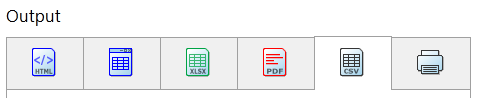
From left to right: HTML, Screen Display, Excel, PDF, CSV, Printer
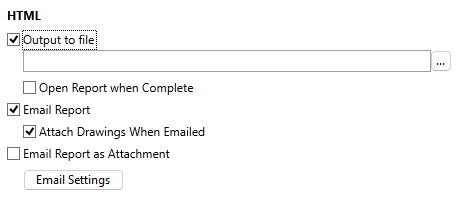
A file name and path must be specified before the report will run. You have the option of opening the result with your default browser immediately, or of simply generating the file silently.
When emailing a report in HTML format, images and line charts present in the report are attached in the report. Those attachments are referenced to show them in the email. This approach is compatible with Apple Mail, Gmail and many other email servers. To disable this setting deselect "Attach Drawings When Emailed".
The resulting report will be created using the HTML format, but saved to a temporary file that is used only to display that report on your screen.
A file name and path must be specified before the report will run. You have the option of opening the result with your default browser immediately, or of simply generating the file silently.
You have the option to convert all values to text. This means all numeric values will be converted to text strings.
For a standard Excel XLSX output:
- A header row is included in addition to the title row.
- Formatting consists of the header & title rows being displayed with a bold font.
- The worksheet will be named automatically using a timestamp.
- Will be saved to a file on disk. You must provide the name and folder location for the file.
- May also be sent to an email address, as an attached file.
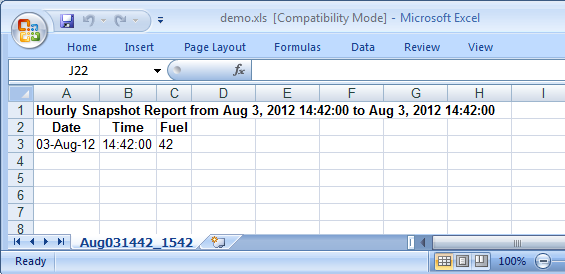
Sample Excel report
A file name and path must be specified before the report will run. You have the option of opening the result with your default browser immediately, or of simply generating the file silently.
You will be prompted for landscape or portrait mode when running each report if the option is selected.
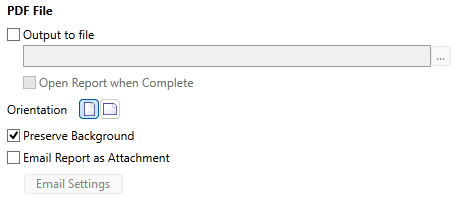
If preserve background is selected, colors associated with the cells will be printed. Deselect in order to save ink and make text easier to read.
Images and line charts are not rendered in a CSV output. A file name and path must be specified before the report will run.
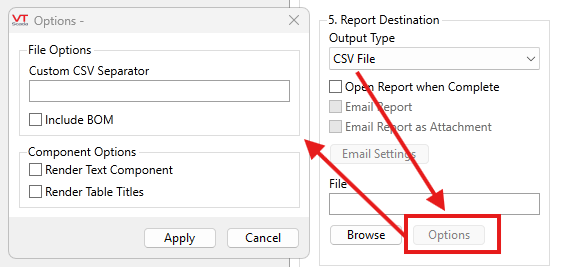
Custom CSV Separator
Allows you to replace the default comma separator with something else.
Include BOM
When enabled, the CSV file will include a byte-order-marker Prefix that indicates the byte ordering used when the text was written.
Render Text Component
Render the text inside the text component in a CSV file.
Render Table Titles
Render table titles in the CSV file.
Reports configured in the Report Studio can be printed from the
To automatically print reports on a scheduled basis or to apply a time offset to a printed report, you must use a Report tag.
Printing is not available when running as a service.
Printing is not available from the Anywhere Client, but email is. See: Email Setup for Alarms and Reports
Using the Run Report button will always be local, whereas triggered reports can be configured to run on specific workstation(s) or server lists. This may cause confusion for operators, without tag browser access, if they try to generate a report and expect it to behave the same way it does when it is triggered. (ex. It may print on a different printer).
To align report generation behavior, add a button for the configured Report tag:
Configure a report tag to trigger by tag value and use a Momentary button to set the value of that tag to 1. When the operator wants to run off a quick report, they will have a specific button for that.
Printing from a Report Tag
See: Report Tags.
When configuring your Report Tag, select the Report Type in the ID tab.
Configure your printer settings from the Destination tab. Once you have changed the destination to "Printer" the options will change to match:
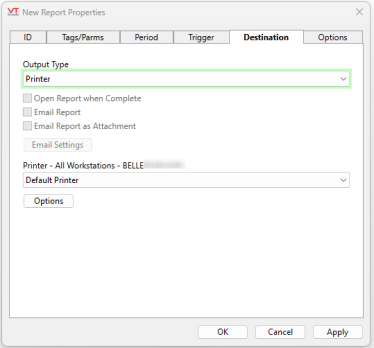
The Report Tag will automatically detect available printers from the machine that the report would presently be generated on.
The report Generation Mode is configurable from the Report Tag's Trigger tab. This setting will determine which printers are listed in the Destination tab. If the generation mode is set to Server List and the primary machine for the service or server changes when the report is run, the report will run and printer from a different machine.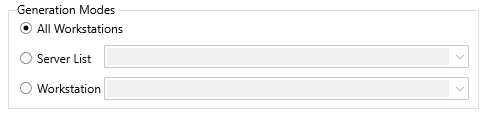
All Workstations is selected by default. A list of printers on the local machine will be shown. All workstations will attempt to find a printer of that name, and will print to each workstation where a printer of that name can be found.
If a specific server list or service is selected, then we will query the current primary machine of that server or service.
If a target workstation is specified, that machine will be queried for its printers.
Printing from the Reports Page will typically happen from the local machine. If the printer was selected via the Browse button when configuring a Standard Report, then it will try to use the VIC local machine.
You can select multiple destinations from one Output Type. For example, you could create a local HTML file and email the same report in the same generation cycle.
The way this works, is that VTScada generates the same report multiple times in the formats most suitable for your selections. If you choose to save the report locally and also email the report, VTScada is generating two versions of the same report and the process takes approximately twice as long.
During this process, the progress dialog will have a step count.
