Application properties are organized by section. If you change a property to use a section other than the one it was meant for, then that property will be ignored by VTScada. Note the shape of the brackets delimiting each section name.
- [] Section names in square brackets will be shown in the Application Configuration dialog.
- <> Section names in angled brackets are hidden from that dialog.
Properties in an hidden section may still be changed, but must be edited directly in the user copy of the Settings file and that file then imported into the application.
The following sections are defined application properties.
| Section Name | Used in | Notes |
|---|---|---|
| <APPLICATION> | Settings.Startup |
Introduced in VTS version 10. The <APPLICATION> section includes information that in previous versions of VTScada was stored in the file GDI.WIF, as well as other application-specific properties such as AutoStart. |
| [Application] | Settings.Dynamic | Similar to <Application> in the .Startup file, but contains application-level properties that may change dynamically. Examples include AutoActivate, Name and VamIcon. |
| <ALARM_MANAGER> | Settings.Startup |
The <ALARM_MANAGER. section includes the properties that define the format of alarm records, and the default filter dialog format. |
| [Areas] | Workstation.Startup |
When added to one or more of an application's Workstation.Startup files, the [AREAS] section enables you to perform tag area filtering. |
| <LABELS> | Settings.Startup & Settings.Dynamic |
Application properties in the <LABELS> section exist only for backward compatibility. Changes to these properties are ignored. You are advised to use the Languages interface to change labels. (Languages) |
| <SecurityManager-Admin> | Settings.Dynamic | The hidden section, <SecurityManager-Admin>, contains properties set by the Administrative screen of the security manager. These include properties controlling the default AutoLogoff time and minimum password length. |
| <SecurityManager-PrivSys> | Settings.Dynamic | The hidden section, <SecurityManager-PrivSys>, sets the name used for each of the general privileges. |
| [StandardServerLists] | Settings.Dynamic | The [StandardServerLists] section defines server lists available to choose from when adding a new service in the Edit Server Lists panel. |
| [SYSTEM] | Settings.Dynamic & Settings.Startup | The [SYSTEM] section contains a list of variables that will determine the attributes of the application while it is running. Any values in the [SYSTEM] section are added or modified in the root system VTScada module. The [SYSTEM] section corresponds to the class 0 variables in AppRoot.src |
| [SystemAlarmAreas] | Settings.Startup | The [SystemAlarmAreas] section contains a list of predefined areas in use by VTScada. These are used when filtering the alarm history display to view only certain system such as "Security" and "OperatorLog". Using the area names from this list will cause no harm ("System" is commonly used for port, driver and other tags), but as a general guideline you may wish to avoid using the area names, "Security", "OperatorLog, " and "Report" for I/O tags. |
| [DefaultEquipmentTypes] | Settings.Startup |
Equipment type names that are available to new I/O and Calculation tags. This section will not exist in your Settings.Startup file until you create it. Note that there is no need to add new types here since you can do so easily within any I/O tag in your application.
You might choose to add new types to your Settings.Startup file (or change the default type) if you are creating an OEM layer for distribution. Each entry in this section must be a key to a phrase matching the type that you wish to create. It cannot be the actual name for the type. To create an entry, start by creating a new phrase (word) in the Languages panel of your application.(Insert Phrases) Ensure that you have set the view mode to include the Key column. Copy the key for the new phrase. Open your Settings.Startup file in a text editor. Create a new section, [DefaultEquipmentTypes] Below that section add the phrase identifier key, setting the value to 1. [DefaultEquipmentTypes] R8mwNb7 = 1 Only entries set to 1 are added to the dictionary of available types. You may add as many equipment types as you like within the section. Restart the application. If there is no phrase for the key you enter (phrases are case-sensitive) an error message will be shown. |
| [ReferenceTypeDefaults] | Settings.Startup |
Configure an application to identify the default tag for any given *ReferenceType (or *ContextType). By default, there are two default tags:
To configure more default tags, you can:
Notes: This mechanism works regardless of whether EnableSiblingTagAutoLinking is enabled.
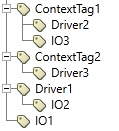
For the above tag tree, if I have "*Driver = ContextTag2\Driver3" in my Settings.Startup file and EnableSiblingTagAutoLinking is enabled, then:
If I have nothing in my Settings.Startup file and EnableSiblingTagAutoLinking is enabled, then:
If I have "*Driver = WrongTagName/WrongUniqueID" in my Settings.Startup file and EnableSiblingTagAutoLinking is enabled, then:
|