
To configure a Semtech AirLink Router you will need to configure a Semtech AirLink SMS Appliance Tag in VTScada and then access the router to configure the device using it's build in web-based interface.
ACEManager Quick Connect Guide
- Connect the AirLink router directly to your machine over ethernet.
- Navigate to
https://192.168.13.31:9443/in your web browser. (You may need to disable wi-fi on your PC.) - Log into ACEmanager.
| Username: | user
|
| Password: | Written on the bottom of your AirLink router. |
- Click on the WAN/Cellular tab > Ethernet section > Static Configuration subsection.
Fill in the following settings:
| Ethernet WAN mode: | Static
|
| Static WAN IP: | A static IP that you have selected to assign to this device. See your IT department. This static IP will be used by VTScada to reach the device. |
| Static WAN Netmask: | The subnet mask. See your IT department. |
| Static WAN Gateway: | The network gateway. See your IT department. |
- Click 'Apply' found in the top-right to apply your changes.
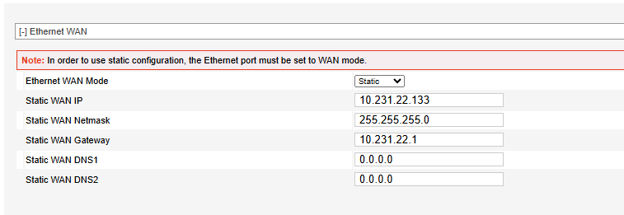
Here is an example of a populated Ethernet WAN section. Your addresses may differ.
- Click on the LAN tab > Host Port Routing section.
Fill in the following settings:
| Proxy ARP (primary Gateway) | Disable
|
- Click 'Apply' to apply changes.
- Click on the LAN tab > Ethernet section.
Fill in the following settings:
| Device IP: | The static IP of the AirLink router. Should be the same as the one set in the previous step. |
| IP Netmask: | The subnet mask. The same as the one in the previous step. |
| DHCP Mode: | Disable
|
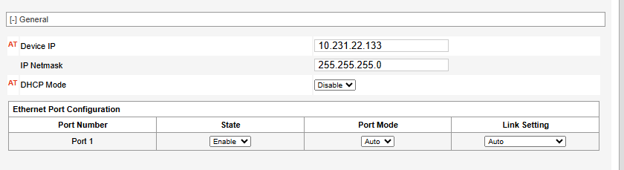
Here is an example of a populated Ethernet LAN section. Your addresses may differ.
- Click Apply to apply your changes.
- Click on the Services tab > SMS section.
Fill in the following settings:
| [-] SMS Mode | |
| SMS Mode: | Control and Gateway |
| [-] Local Host Interface Configuration | |
| Local Host IP: | The IP address of the workstation running VTScada that will be communicating with the AirLink router. |
| Local Host Port: | The port that the VTScada workstation will be listening on. The same as "Inbound Port" configured in the AirLink SMS Appliance tag. |
| ALEOS Port: | The port on the AirLink router that VTScada will be sending messages to. The same as "Outbound Port" configured in the AirLink SMS Appliance tag. |
ALEOS is the name of the operating system running on AirLink Routers.
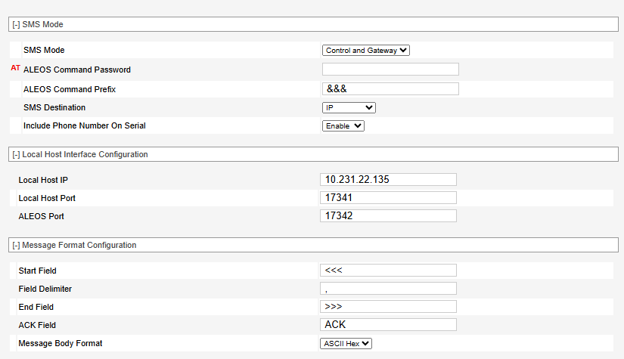
Here is an example of a populated SMS section. Your addresses may differ.
- Click 'Apply' to apply your changes.
- Click 'Reboot' to reboot the device.
- After the device has rebooted, connect it to your network. It should be reachable at the static IP that you configured.
(for example, https://10.231.22.133:9443/)
SemTech AirLink SMS Appliance tag error messages
Most error messages associated with SMS originate from the network and are not defined within VTScada. For sent messages, acknowledgment (ACK) codes are received that may provide relevant information. If the message is not successful, the error ACK codes are logged to a file.
|
Code |
Explanation |
|---|---|
| 0 | Success |
|
100 |
Not in coverage (no cellular service) |
|
201 |
Parse Error on field #1 (Start Field) |
|
202 |
Parse Error on field #2 (Phone number and separator) |
|
203 |
Parse Error on field #3 (Data type and separator) |
|
204 |
Parse Error on field #4 (Payload length and separator) |
|
205 |
Parse Error on field #5 (Message and End Field) |
| 301 | No buffers available |
| 302 | SMS queue full |
Semtech AirLink SMS Appliance Tag
Alarm Notification System - Alerts by Phone, Email or Text
