Semtech AirLink SMS Appliance Tag
Not counted towards your tag license limit.
While VTScada will always attempt to send the text message, there is no guarantee that your the cellular provider will deliver all messages. Use the SMS option of alarm notification with caution.
All SMS Appliance tags, including the Semtech Airlink SMS Appliance tag, work in conjunction with VTScada's Alarm Notification System for sending text messages to a mobile cellular device, and receiving alarm acknowledgment back.
Where the SMS Appliance tag sends messages via a cell modem connected to the workstation over a serial connection, the Semtech Airlink SMS Appliance tag was specifically developed for use with Semtech AirLink routers over an ethernet connection.
- SMS messages are sent and received using an AirLink router connected to the VTScada workstation over a UDP network connection.
- The router provides cellular connectivity and handles SMS message transmission and reception on behalf of VTScada.
- Communication between VTScada and the router occurs over IP rather than through a directly attached serial or USB device.
To configure a Semtech AirLink router over an Ethernet connection, connect your computer to the router and log in to the router's built-in ACEManager web interface using a supported web browser.
For specific instruction see: Configure a Semtech AirLink Router
Because UDP-based SMS devices are network-connected, the configuration of the Semtech AirLink SMS Appliance tag allows you to specify the IP address and port of the router, along with the workstation managing the connection.
VTScada takes care of forwarding message requests in a round-robin A round-robin sequence is a method of taking turns through a list of items in order and then looping back to the beginning after reaching the end. sequence.
VTScada will queue messages to be sent to the router, with a timeout between messages, to avoid overloading the device. There is no mechanism by which VTScada can queue messages that are received back. If there is a need to queue or space out received messages, you will have to manage that from the subscriber side.
SemTech was formerly known as Sierra Wireless until 2023.
AirLink is a trademark or registered trademark of Semtech Corporation. Other product names may be trademarks of their respective owners.
Operators will be responsible for managing how their cell phone receives, filters and notifies them about received messages.
Text Encoding for the Semtech AirLink SMS Appliance Tag
Semtech AirLink SMS modems support the T.50 (IRA) character set, which includes basic Latin letters, digits, and common punctuation characters. Accented characters and non-Latin scripts are not supported.
Monitor Semtech AirLink SMS Appliance tag status
The value of the Semtech AirLink SMS Appliance tag can be used to monitor the device status. See the value from the tag browser or using any widget that can display a numeric or text value.
|
Value |
Meaning |
|---|---|
| 0 | Initializing |
|
1 |
Connected to cell modem |
|
2 |
Sending an SMS Message |
|
3 |
Receiving an SMS message |
|
4 |
Disabled |
|
5 |
Workstation with modem is not available |
|
6 |
Modem unavailable |
The value meanings for the Semtech AirLink SMS Appliance tag are very similar to that of the SMS Appliance tag, but 4, 5 and 6 have different meanings.
|
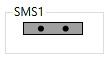
The SMS Indicator Widget displays a graphic of an active SMS modem. It displays the name of the linked SMS Appliance tag or Semtech AirLink SMS Appliance tag, indicates when a message is being sent or received, displays the number of the device sending the message, and displays some status messages. |
| The Multi-Text Widget can show the text status message for this tag. | |
SemTech AirLink SMS Appliance tag error messages
Most error messages associated with SMS originate from the network and are not defined within VTScada. For sent messages, acknowledgment (ACK) codes are received that may provide relevant information. If the message is not successful, the error ACK codes are logged to a file.
|
Code |
Explanation |
|---|---|
| 0 | Success |
|
100 |
Not in coverage (no cellular service) |
|
201 |
Parse Error on field #1 (Start Field) |
|
202 |
Parse Error on field #2 (Phone number and separator) |
|
203 |
Parse Error on field #3 (Data type and separator) |
|
204 |
Parse Error on field #4 (Payload length and separator) |
|
205 |
Parse Error on field #5 (Message and End Field) |
| 301 | No buffers available |
| 302 | SMS queue full |
Semtech AirLink SMS Appliance properties ID tab
The ID tab of every tag includes the same common elements: Name, Area, Description, and Help ID.
Name:
Uniquely identifies each tag in the application. If the tag is a child of another, the parent names will be displayed in a separate area before the name field.
You may right-click on the tag's name to add or remove a conditional start expression.
Area
The area field is used to group similar tags together. By defining an area, you make it possible to:
- Filter for particular tag groups when searching in the tag browser.
- Link dial-out alarm rosters to Alarm tags having a particular area.
- Limit the number of tags loaded upon startup.
- Filter the alarm display to show only certain areas.
- Filter tag selection by area when building reports.
When working with Parent-Child tag structures, the area property of all child tags will automatically match the configured area of a parent. Naturally, you can change any tag's area as required. In the case of a child tag, the field background will turn yellow to indicate that you have applied an override. (Orange in the case of user-defined types. Refer to Configuration Field Colors).
To use the area field effectively, you might consider setting the same Area for each I/O driver and its related I/O tags to group all the tags representing the equipment processes installed at each I/O device. You might also consider naming the Area property for the physical location of the tag (i.e. a station or name of a landmark near the location of the I/O device). For serial port or Roster tags, you might configure the Area property according to the purpose of each tag, such as System or Communications.
You may define as many areas as you wish and you may leave the area blank for some tags (note that for Modem tags that are to be used with the Alarm Notification System, it is actually required that the area field be left blank).
To define a new area, type the name in the field. It will immediately be added. To use an existing area, use the drop-down list feature. Re-typing an existing area name is not recommended since a typo or misspelling will result in a second area being created.
There is no tool to remove an area name from VTScada since such a tool is unnecessary. An area definition will exist as long as any tag uses it and will stop existing when no tag uses it (following the next re-start).
Description
Tag names tend to be brief. The description field provides a way to give each tag a human-friendly note describing its purpose. While not mandatory, the description is highly recommended.
Tag descriptions are displayed in the tag browser, in the list of tags to be selected for a report and also on-screen when the operator holds the pointer over the tag’s widget. For installations that use the Alarm Notification System, the description will be spoken when identifying the tag that caused the alarm.
The description field will store up to 65,500 characters, but this will exceed the practical limits of what can be displayed on-screen.
This note is relevant only to those with a multilingual user interface:
When editing any textual parameter (description, area, engineering units...) always work in the phrase editor. Any changes made directly to the textual parameter will result in a new phrase being created rather than the existing phrase being changed.
In a unilingual application this makes no difference, but in a multilingual application it is regarded as poor practice.
Help Search Key
Used only by those who have created their own CHM-format context sensitive help files to accompany their application.
Semtech AirLink SMS Appliance Settings tab
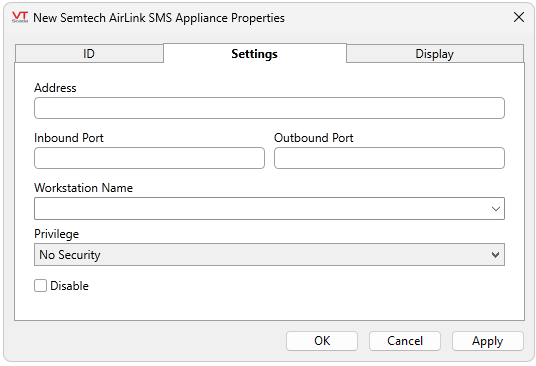
Address
The IP address of the Semtech AirLink router.
Inbound Port
The UDP port number used by VTScada to listen for incoming messages. This port number must match the Local Host Port in the ACEManager.
Outbound Port
The UDP port number used by VTScada to send outgoing messages. This port number much match the ALEOS Port in the ACEManager.
Workstation Name
Select the name of the computer connected to the Semtech AirLink Router.
It's important to note, if this workstation is lost you will also lose the ability to use the AirLink router to notify.
Privilege
If you have configured custom privileges, you can select it from this droplist. Custom privilege is used only to limit the operation of this control to only those who have been granted the matching security privilege. It does not prevent the tag from operating normally if a user without privileges has logged in.
In the case of the Semtech AirLink SMS Appliance tag, A user with privileges would be able to disable or enable the tag via the context menu (right-click). To a user without privileges, these options are gray and disabled.
See Protect Pages and Output Tags to learn more about custom privileges.
Disable
Select this box to disable the device without removing it or deleting its configuration.
Semtech AirLink SMS Appliance Display tab
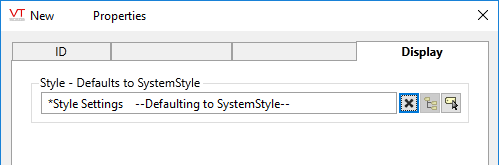
When this tag is represented on screen by widgets that can use a Style Settings tag, you can save development time by choosing the Style Settings tag that holds the correct display configuration for this tag instance.
The default configuration will use System Style, the default style tag that is automatically part of every new VTScada application. If a Style Settings tag is an ancestor or else a sibling, it will become the new automatic default.
Alarm Notification System - Alerts by Phone, Email or Text
Configure a Semtech AirLink Router
Semtech AirLink MS Appliance Tag Widgets
Semtech AirLink SMS Appliance Tags have a numeric value indicating their current state. The following widgets may be used to display this information:
