
OPC UA Server tags provides the configuration for each OPC UA server running on the local computer and keep redundant OPC UA Servers in sync.
In addition, it provides server certificate management, access control for OPC UA Client applications and server diagnostic information.
Your VTScada application must have OPC Server enabled in its license. In the VAM menu, select License Management to see your License Features.
An OPC UA Server tag must be paired with at least one OPC UA Publisher tag to form a complete system. (The OPC UA Server will not start without an OPC UA Server tag and at least one OPC UA Publisher tag.)
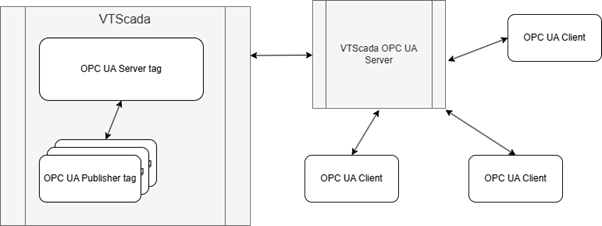
A simplified concept diagram of VTScada's OPC Server
 ID tab
The ID tab of every tag includes the same common elements: Name, Area, Description, and Help ID.
Name:
Uniquely identifies each tag in the application. If the tag is a child of another, the parent names will be displayed in a separate area before the name field.
You may right-click on the tag's name to add or remove a conditional start expression.
Area
The area field is used to group similar tags together. By defining an area, you make it possible to:
- Filter for particular tag groups when searching in the tag browser.
- Link dial-out alarm rosters to Alarm tags having a particular area.
- Limit the number of tags loaded upon startup.
- Filter the alarm display to show only certain areas.
- Filter tag selection by area when building reports.
When working with Parent-Child tag structures, the area property of all child tags will automatically match the configured area of a parent. Naturally, you can change any tag's area as required. In the case of a child tag, the field background will turn yellow to indicate that you have applied an override. (Orange in the case of user-defined types. Refer to Configuration Field Colors).
To use the area field effectively, you might consider setting the same Area for each I/O driver and its related I/O tags to group all the tags representing the equipment processes installed at each I/O device. You might also consider naming the Area property for the physical location of the tag (i.e. a station or name of a landmark near the location of the I/O device). For serial port or Roster tags, you might configure the Area property according to the purpose of each tag, such as System or Communications.
You may define as many areas as you wish and you may leave the area blank for some tags (note that for Modem tags that are to be used with the Alarm Notification System, it is actually required that the area field be left blank).
To define a new area, type the name in the field. It will immediately be added. To use an existing area, use the drop-down list feature. Re-typing an existing area name is not recommended since a typo or misspelling will result in a second area being created.
There is no tool to remove an area name from VTScada since such a tool is unnecessary. An area definition will exist as long as any tag uses it and will stop existing when no tag uses it (following the next re-start).
Description
Tag names tend to be brief. The description field provides a way to give each tag a human-friendly note describing its purpose. While not mandatory, the description is highly recommended.
Tag descriptions are displayed in the tag browser, in the list of tags to be selected for a report and also on-screen when the operator holds the pointer over the tag’s widget. For installations that use the Alarm Notification System, the description will be spoken when identifying the tag that caused the alarm.
The description field will store up to 65,500 characters, but this will exceed the practical limits of what can be displayed on-screen.
This note is relevant only to those with a multilingual user interface:
When editing any textual parameter (description, area, engineering units...) always work in the phrase editor. Any changes made directly to the textual parameter will result in a new phrase being created rather than the existing phrase being changed.
In a unilingual application this makes no difference, but in a multilingual application it is regarded as poor practice.
Help Search Key
Used only by those who have created their own CHM-format context sensitive help files to accompany their application.
Configure server identifying information, connection settings, security modes and policies, behavior and security certificates for a specified controlling workstation.
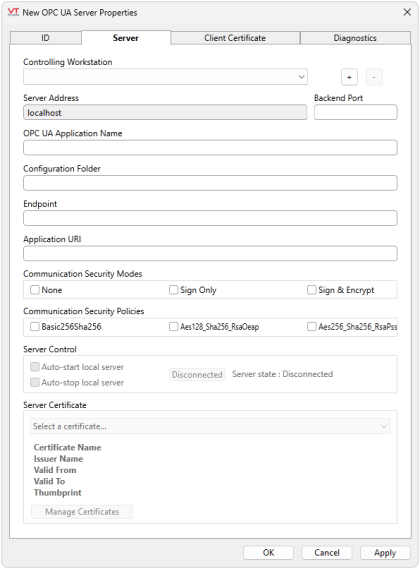
Controlling Workstation & +/-
Use [+ ] to add machines to the Controlling Workstation droplist. The controlling workstation refers to the machine running the OPC UA service. Each Controlling Workstation running this application runs a redundant OPC UA Server. Note that each redundant OPC UA Server has its own configuration.
All other fields in this tab are used to make configurations to the controlling workstation that is selected here.
If multiple Controlling Workstations are added to the droplist, the configurations in the other fields will change to reflect whichever workstation is selected.
You can remove a Controlling Workstation by selecting it from the droplist and clicking [ - ].
Server Address & Backend Port
The server address is locked to the local host. The Backend Port can be any available TCP port number and will auto-generate a default value.
VTScada communicates with the OPC UA Server through a secure TCP connection (TLS) on the port identified by Backend Port. You do not need to configure a separate communication tag for this connection.
The Backend Port is not the port that an OPC UA client uses to communication with the server. This is a private link between the VTScada application and the OPC UA server (which is on the same machine but executed as a separate process.)
OPC UA Application Name
Free format text, only used by the OPC UA Server for identification purposes to an OPC UA Client.
Configuration Folder
A local folder on your hard drive. For example, C:\OPCUA\MyApplicationName.
The OPC UA server uses this location to store working data and log files. You do not need to create the folder. With a location specified, the OPC UA Server tag will auto-create the configuration folder if it doesn't exist.
If you change this folder in the future, be sure to create the folder and copy the namespaces.xml file from the previous folder into it. If you fail to do this, the OPC UA Namespace IDs may be incorrect when you restart the server.
Endpoint
This is the OPC UA endpoint used by the server. This is the address used by clients to connect to the server.
For example,

where:
• opc.tcp:// represents OPC TCP Binary protocol. VTScada only supports OPC TCP Binary protocol. Required.
• hostname A sequence of instructions with its own execution state that runs within a process and shares that process's memory and resources. is the name of the OPC UA Server. Required.
• serverdomain.com is the domain of the OPC UA Server. Optional.
• 4880 is a port number for the client connection. Required.
• /server is an optional string. This Endpoint path may distinguish between multiple OPC UA servers using the same port. VTScada OPC UA Server only supports a single endpoint per server and different OPC UA Servers (if you configure more than one) must use different endpoint ports.
The host name and optional domain name must appear as a DNS entry in the X.509 certificate (DNS=hostname.serverdomain.com). This is configurable in the Certificate Manager.
It is possible to use an IP address, but not recommended.
Application URI
You can fill out this field and it will be carried forward into the Subject Alternative Names (SAN) field of a new server certificate. When you select a server certificate to use, this field will update to reflect the URL entry in the SAN.
The application has a fixed URI Uniform Resource Identifier. URIs Identify, whereas URLs Locate. In many cases, a URI looks a lot like a URL. with a valid URI format. urn:<hostname>:<application-name>[:<instance-id>]
This format is defined by the OPC UA specification. Must not include characters banned from URIs.
Communication Security Modes
Security modes define how OPC UA protocol packets are protected against sniffing and tampering between the server and client. Select permissible security modes. Those options are then provided to the client, and the client is permitted to choose the most appropriate from the enabled options.
• Sign and Encrypt - Tamper proof and snoop proof. Best Practice.
• Sign Only - Tamper proofing alone.
• None - No protection.
Sign and Encrypt alone is recommended.
The "None" security policy permits communication without encryption or message signing (no confidentiality or integrity). This should only be selected for testing or when the connection is otherwise protected by external means, such as a VPN between the VTScada system and the OPC UA server.
Where encryption or cryptographic signing of communication is desired (recommended), a trusted certificate is required at both the OPC UA server and the OPC UA Client to verify identity. The client must trust the server certificate and vice versa.
Communication Security Policies
Select permissible security policies. Those options are provided to the client, and the client is permitted to choose the most appropriate from the enabled policies. Security Policies inform the cryptographic algorithms used to encrypt communication between server and clients. Each policy option is supported by the OPC Foundation's specifications.
AES‑256‑SHA256‑RSA‑PSS is the strongest policy, followed by AES‑128‑SHA256‑RSA‑OAEP. Basic256Sha256 is an older policy that is more widely available.
The suitability of security policies drifts over time as strategies change in response to evolving bad actions.
As computing power increases, security policies are expected to expire. See OPC Foundation's descriptions of security policies (Click [+] Profiles to see more).
Server Control
Elect to have the OPC UA Server start when the application starts, stop when the application stops. Or manually start and stop the server. If you enable the auto-start options, the server will start as soon as you have configured a valid OPC UA Publisher tag and it will start on app start and stop when the app stops thereafter.
Server Certificate
Configure the server's security certificate. Choose one that is already installed, or click Manage Certificates to create a new self-signed certificate, or import, remove, or renew a certificate.
The certificate must have a configured SAN (Subject Alternative Names) extension like this:
DNS=hostname[.myplant.com]
URL=urn:hostname[.myplant.com]:instance-id
[IP Address=127.0.0.1]
where the [square brackets] are optional depending on your configuration. The specific IP Address used in this example is just for illustrative purposes.
When this certificate is saved and selected, the URL value will appear in the Application URI field.
See: Creating a New OPC UA Server Certificate
Client Certificate
The Client Certificate tab presents the set of client certificates that are known to this OPC UA Server tag and whether they are trusted.
When an OPC UA Client establishes a connection the server, it supplies its certificate. By default, new certificates are deemed Untrusted and will appear in the Untrusted Certificates table. For the client to be allowed to connect, you must select the certificate and click 'Add Trust' to move it to the Trusted Certificates table.
Use the Add Trust and Remove Trust arrow buttons to move a selected certificate to Trusted or Untrusted status.
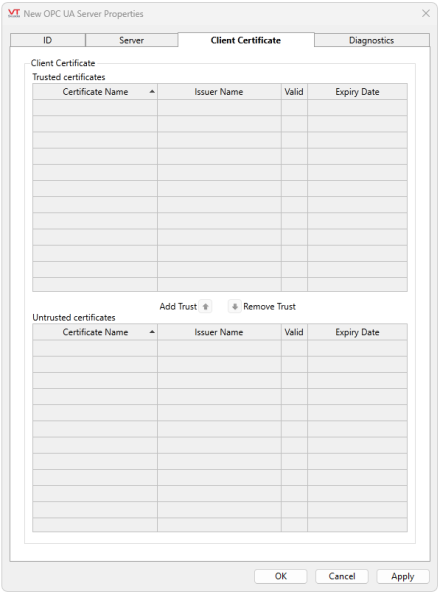
You may revoke the trusted status of a certificate at any time, but note that this does not immediately break an existing connection. Revocation of the client access will take effect shortly after. Trusted and Untrusted certificates are synchronized across redundant machines.
The diagnostics tab provides diagnostic information about the OPC UA Server and log file control.
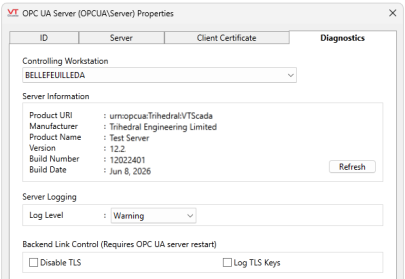
The sample Diagnostics tab pictured here shows stats from a running OPC UA server. If your server is not running, this info would be blank.
Controlling Workstation
Select the Controlling Workstation for which to display diagnostic information.
Server Information
Version and general information about the OPC UA Server. This information is only populated when the OPC UA Server is running.
Server Logging
Log Level provides control over how much and what kind of information to include in the log file.
• Minimum - Significant events only, such as startup and shutdown.
• Error - Everything logged in Minimum level and also error conditions.
• Warning - Everything logged in Error level and also warning conditions. Default.
• Info - Everything logged in Warning level but with more detailed information.
• Debug and Full Debug - Reserved for diagnostic purposes only. Used only under advisement from Trihedral Support.
Choosing the correct log level for your tag must strike a balance between the highest levels (which take up the most storage and may affect performance) and the lowest levels (that simply won't have answers). We recommend the Error or Warning log level for day-to-day operations, and to only increasing the log level incrementally during troubleshooting.
Debug and Full Debug should be reserved for Trihedral Support staff.
The log files are held in the TraceFiles sub-folder of the configuration folder located at the pathway specified in the Server tab, "Configuration Folder" field. The OPC UA server starts a new log file when the current file exceeds 10Mb and keeps the previous 4 log files. These limits can be modified through application properties.
Backend Link Control
Disable TLS disables TLS security on the communication link between VTScada and the OPC UA Server.
Log TLS Keys causes the OPC UA Server to record an "SSLKEYLOGFILE" for the communication link between VTScada and the OPC UA Server in its configuration “TraceFiles” folder. This file can be used to decrypt the communication for diagnostic purposes.
These settings are provided for diagnostic use and should only be enabled under the direction of Trihedral support staff. The settings here revert to both disabled (un-checked) if the OPC UA Server tag restarts - i.e. when the application restarts or the tag is disabled and re-enabled.
Troubleshooting
- Backend Port number already in use?
The default port number, 48500, or whichever port number you have specified is already in use. Try a different port number. - OPC UA Application name doesn't match?
This field does not need be an exact match to the application name, the important thing is that whatever text value is here is an exact match in the configuration of an OPC UA Client. - Configuration Folder Moved/Deleted? OPC UA Namespace ID is invalidated.
Your OPC UA Server tag uses the Configuration Folder to store working data and log files. If the location specified in the Server tab (with the correct Controlling Workstation selected) in the field 'Configuration Folder' does not already have a populated configuration folder, it will auto-create one. This includes auto-generating such values as the OPC UA Namespace ID, a value that must be known to OPC UA Clients. If the namespaces.xml file is not preserved, tags in the OPC UA Server could be mapped to a different namespace ID. In this case, your OPC UA Clients will have to re-browse the OPC UA Server address space to obtain the new addresses. It is important to preserve this information.- You plan to Delete it.
Preserve namespaces.xml and replace it in the new folder. - You've Deleted it.
Check your recycling bin. In some cases, you may be able to reconfigure your OPC UA clients. - You've moved it.
Change the address in the OPC UA Server tag config. - You're on a new machine
If you still have access to the old machine or a backup, obtain a copy of the Configuration Folder. Be sure to align the location of the folder on the new machine with the address specified in your OPC UA Server tag.
- You plan to Delete it.
