The Report Studio
 You are here...
At a glance:
For users who want to run reports from the Report Studio.
Find this in VTScada:
Find the icon in the title bar or type ctrl+R for Report Studio. You must have privileges.
Related topics and things to know before reading this include:
Where to go from here:
Want to create your own reports?
The Report Studio (for developers)
Reports take data from your application and convert it into a human-readable format. Reports are handy for quickly sharing the state of a system, examining trends over time, taking a routine snapshot, or gathering information after a notable event. Reports are also often required by third parties or kept in an archive for future reference.
If all you need is a table of records, there are many places in VTScada where records can be exported, copied to the clipboard, or printed as-is. The Report Studio, however, has a whole suite of features and configuration options for producing highly optimized reports.
Report Studio reports can include tables and line charts. They can be formatted with images, parameterized text, fonts, and colors. Reports can also accept parameters at run time, allowing one report definition to be used in many different contexts.
Reports created in the Report Studio can include tables of:
- Tag data
- Operator notes
- Alarm and event history
- Queries from SQL databases
- Specialized data from Recipe Books and Transaction Loggers
- Summary rows
- Calculations made using application values, numeric constants, and custom parameters
A table can contain multiple data sets, potentially of different types. Reports can contain up to 15 tables, among other components. A variety of output formats are available including screen display, HTML, Excel, PDF, CSV, or print, with the option to email a copy of the report.
Reports can be run on schedule, by event, displayed on a page or linked to a widget. Users with Report Studio Access can run ad-hoc reports from the Report Studio in [DRAFT] mode. Run the report as-is, or make temporary changes that are discarded when you close the Report Studio.
Report Studio Privileges & Security Realms
Users need privileges to access and use Report Studio.
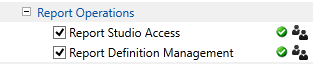
Operators have three levels of access to reports made in the Report Studio:
You have no Report Studio access.
You receive reports on a schedule or your application displays reports on a page or has buttons to manually trigger a report. If you want to make changes to a report, contact a member of your team with access. This may be a manager, super user, administrator or systems integrator.
You have Report Studio Access without Report Definition Management
You can find the Report Studio by clicking the icon in the title bar or typing ctrl+R. From the home tab, you can select from a list of configured reports to open one in [DRAFT] mode. You can run the report from the Report Studio or make changes to run ad-hoc reports. Your changes will not be saved when you close the Report Studio.
You have Report Studio Access with Report Definition Management
In addition to all Report Studio Access privileges, you can now save changes to reports. You can also add and delete reports.
No matter your level of access, you may benefit from browsing the Report Studio topics for developers for a more comprehensive look at the available features and options.
Report Studio Outputs and Formats
