
Not counted towards your tag license limit.
These are used to inquire about the connection status between two computers (usually a server and a workstation). A 1 is returned for a good connection, 0 for no connection and Invalid if no information can be determined.
 Network Status properties ID tab
The ID tab of every tag includes the same common elements: Name, Area, Description, and Help ID.
Name:
Uniquely identifies each tag in the application. If the tag is a child of another, the parent names will be displayed in a separate area before the name field.
You may right-click on the tag's name to add or remove a conditional start expression.
Area
The area field is used to group similar tags together. By defining an area, you make it possible to:
- Filter for particular tag groups when searching in the tag browser.
- Link dial-out alarm rosters to Alarm tags having a particular area.
- Limit the number of tags loaded upon startup.
- Filter the alarm display to show only certain areas.
- Filter tag selection by area when building reports.
When working with Parent-Child tag structures, the area property of all child tags will automatically match the configured area of a parent. Naturally, you can change any tag's area as required. In the case of a child tag, the field background will turn yellow to indicate that you have applied an override. (Orange in the case of user-defined types. Refer to Configuration Field Colors).
To use the area field effectively, you might consider setting the same Area for each I/O driver and its related I/O tags to group all the tags representing the equipment processes installed at each I/O device. You might also consider naming the Area property for the physical location of the tag (i.e. a station or name of a landmark near the location of the I/O device). For serial port or Roster tags, you might configure the Area property according to the purpose of each tag, such as System or Communications.
You may define as many areas as you wish and you may leave the area blank for some tags (note that for Modem tags that are to be used with the Alarm Notification System, it is actually required that the area field be left blank).
To define a new area, type the name in the field. It will immediately be added. To use an existing area, use the drop-down list feature. Re-typing an existing area name is not recommended since a typo or misspelling will result in a second area being created.
There is no tool to remove an area name from VTScada since such a tool is unnecessary. An area definition will exist as long as any tag uses it and will stop existing when no tag uses it (following the next re-start).
Description
Tag names tend to be brief. The description field provides a way to give each tag a human-friendly note describing its purpose. While not mandatory, the description is highly recommended.
Tag descriptions are displayed in the tag browser, in the list of tags to be selected for a report and also on-screen when the operator holds the pointer over the tag’s widget. For installations that use the Alarm Notification System, the description will be spoken when identifying the tag that caused the alarm.
The description field will store up to 65,500 characters, but this will exceed the practical limits of what can be displayed on-screen.
This note is relevant only to those with a multilingual user interface:
When editing any textual parameter (description, area, engineering units...) always work in the phrase editor. Any changes made directly to the textual parameter will result in a new phrase being created rather than the existing phrase being changed.
In a unilingual application this makes no difference, but in a multilingual application it is regarded as poor practice.
Help Search Key
Used only by those who have created their own CHM-format context sensitive help files to accompany their application.
Network Status properties Settings tab
The Settings tab for a Network Status tag is used to specify which workstations you want to monitor. You must provide the names of the machines to monitor. IP and Subnet are required only if separate connections between the computers are possible. In this case, you must tell VTScada which connection to monitor.
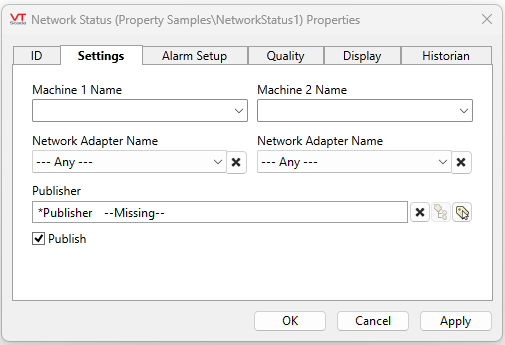
Machine 1 Name
Specify the name of one of the two workstations, the connection between which is to be monitored. You may enter the name of the workstation in this field, or select the name of the workstation from the drop-down list.
Machine 1 Network Adapter Name
The droplist exposes the available interfaces on the associated machine, with additional options for any interface (where you don't care) and an unknown interface (for the case where an interface is configured, but the local machine does not have access to the information to display a name).
This information may not be seen on a machine that has no direct RPC connection (or none yet established) to the target machine.
Machine 2 Name, and Network Adapter Name
These three fields match those of Machine 1. They enable you to specify the second workstation to be monitored by this tag.
Publisher
Select a Publisher tag if one is required for your configuration. Defaults to [*Publisher]. Eligible tags (Publisher tags that are a direct ancestor, uncle or sibling) will automatically link or you can select a tag manually. VTScada publishing configurations may include:
- An OPC client when your application has a properly-configured OPC Classic Server Setup tag.
- A Sparkplug B Edge Node or a Sparkplug B Edge Device.
- A MultiSpeak interface if properly configure. See: MultiSpeak Support.
- A Data Diode publisher or client tag.
Publish
This tag will publish data if a publisher is configured and this setting is enabled. If this setting is disabled, the tag will stop publishing data.
Quality tab
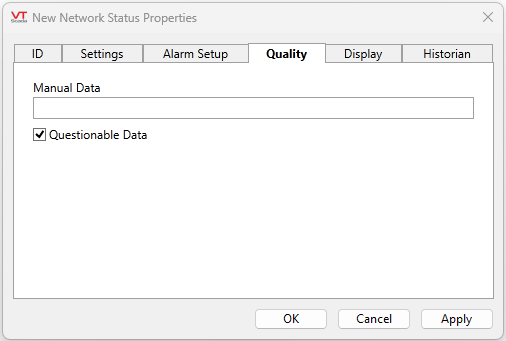
Manual Data
The Manual Data property enables you to enter a value for this tag, rather than reading the value from the monitored workstations. In this instance, the Manual Data property may be set to 0, indicating that the workstation is not connected, or 1, indicating that the workstation is connected.
Questionable Data
Use this field to flag the tag’s data in the event that you suspect the values it is reporting might not be correct, or when this tag has initially been created and you wish to ensure that its data is marked for extra monitoring.
Network Status properties Alarm Setup tab
Use the Alarm Setup tab for a Network Status tag to configure alarm conditions for this tag.
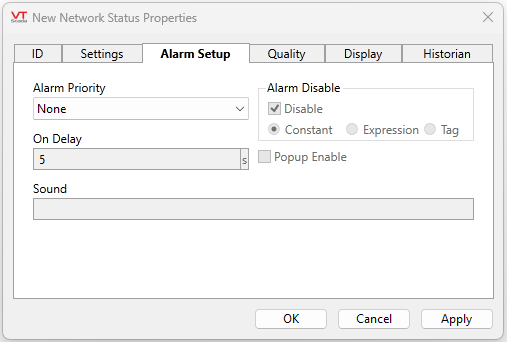
Alarm Priority
The Alarm Priority drop-down list enables you to select the priority of the alarm for this tag, should it enter an alarm state. The available priorities are:
None (alarm not configured)
0 - Event
1 - Critical
2 - High
3 - Warning
4 - Notice
On Delay
The Delay field enables you to enter the amount of time (in seconds or fractions of a second) that the system will wait before triggering an alarm for this tag. This tag must therefore be in an alarm state for the amount of time specified in the Delay field before an alarm will be indicated.
Sound
The Sound field enables you to identify what sound will be played when this alarm is triggered. The Sound field can be set to a 0, 1, or to the name of a .WAV sound file to be played.
If the Sound field is set to 0, no sound will be played when this alarm is triggered.
If the Sound field is set to 1, an alarm sound whose properties are configured on the associated Alarm Priority tag will be played.
If the Sound field identifies the name of a .WAV sound file, it will override any alarm sound configured for the associated Alarm Priority tag. When specifying a sound file, you must enter its name and extension (e.g. MySound.wav). The specified sound file must be a .WAV file, and must be stored in the application directory. If the specified sound file is not found, the alarm will revert to using tones as specified in the associated Alarm Priority tag.
Alarm Disable
The Alarm Disable check box enables you to disable and enable the alarm for this tag. Alarm disabling is typically used in situations where routine maintenance is being performed, or when you are aware that another interruption in communications will occur for a period of time. In such a situation, an alarm can be disabled until the maintenance is complete and communications are reestablished.
May be linked to a tag or expression for suppression by design.
Pop-up Enable
If the application property AlarmPopupsEnable is set to 1, then selecting Pop-up Enable will result in a pop-up dialog being displayed whenever the alarm is triggered. It is strongly suggested that this feature be used sparingly.
Network Status properties Display tab
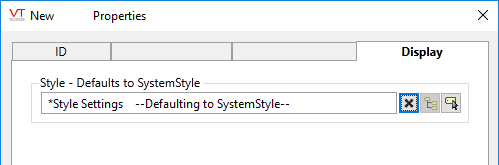
When this tag is represented on screen by widgets that can use a Style Settings tag, you can save development time by choosing the Style Settings tag that holds the correct display configuration for this tag instance.
The default configuration will use System Style, the default style tag that is automatically part of every new VTScada application. If a Style Settings tag is an ancestor or else a sibling, it will become the new automatic default.
Network Status properties Historian tab
Historian
If an Historian tag is selected, this tag's run-time values will be saved for use in reports and the Historical Data Viewer. Historian configuration and advanced logging options are described in the discussion of the Historian Tags.
If your goal is to disable logging, set the Enable parameter (below) to 0 rather than deleting the Historian parameter.
There are consequences if you change the selected Historian tag after you have begun collecting data. If you switch to a new Historian (perhaps for organizational or load sharing purposes), the data collected for this tag by the previous Historian will become inaccessible. Historian selection and configuration should be done during the project design stage.
Network Status Tag Widgets
The following widgets are available to display information about your application’s Network Status tags:
